Local AI Setup
Download a built-in model and use it for transcript cleanup, summaries, and chat.
Last updated: October 24, 2026
Summit can run a language model directly inside the app. You do not need a separate AI server or provider API key. Download the required models while online, then use local text processing offline.
The Mac app requires Apple Silicon and macOS 15 or later. Choose a model that fits your available memory; model downloads can take several gigabytes. Speech recognition uses a separate model in Settings → Speech Models.
Download and select a model
- Open Summit AI Notes → Settings → AI Models.
- Select Local (on this machine).
- Open a memory category. Your Mac marks Summit’s starting category for your Mac.
- Compare the displayed size and memory estimate. If a family offers quality choices, select the version you want.
- Click Download and wait for it to finish.
- Click Use Model. Confirm that it shows Active.
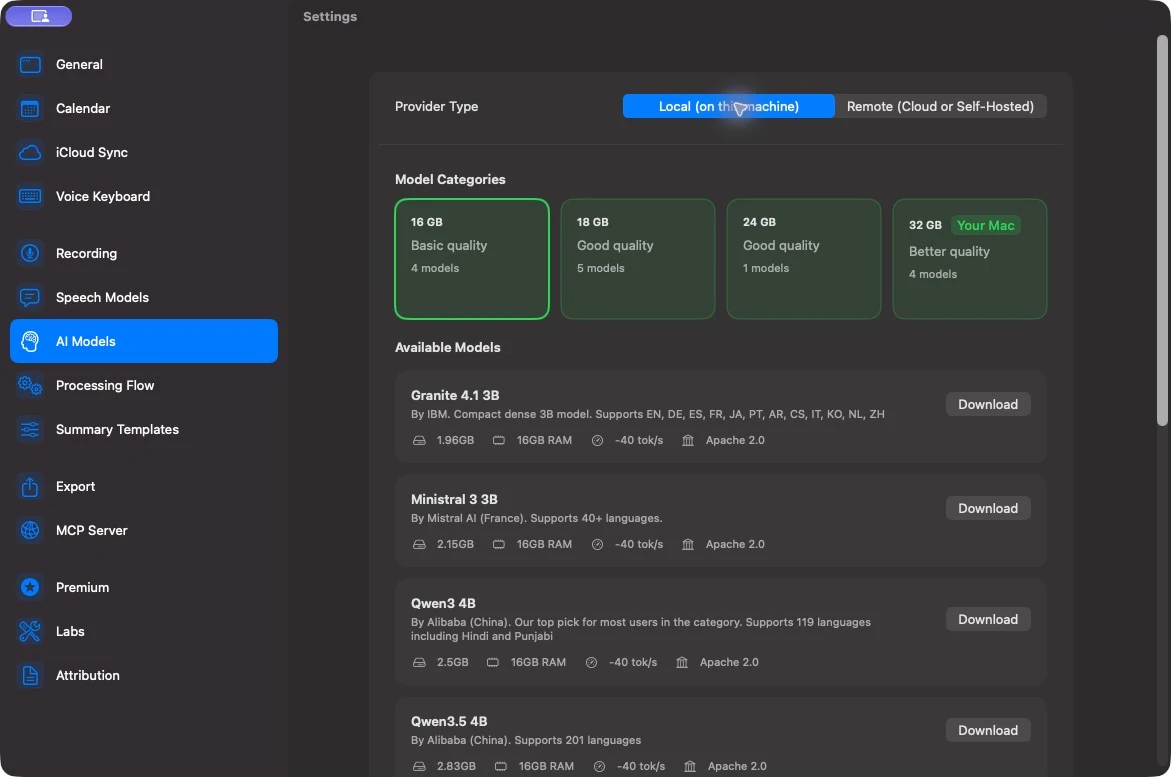
For selection guidance, see Choosing a Local Model. The catalog changes as Summit adds models, so use the choices shown in your installed version rather than an old model list.
Generate a first summary
- Open a recording with a completed transcript. Check names and obvious transcription errors first.
- Choose a summary template, or leave the default.
- Use Reprocess Summary from the recording’s processing actions.
- Review the generated insights and action items against the transcript.
To generate summaries automatically, enable Settings → Processing Flow → Auto-generate summaries after transcription. Enable Generate call summary there if you also want a formatted summary added to Notes.
Decide when your Mac should process
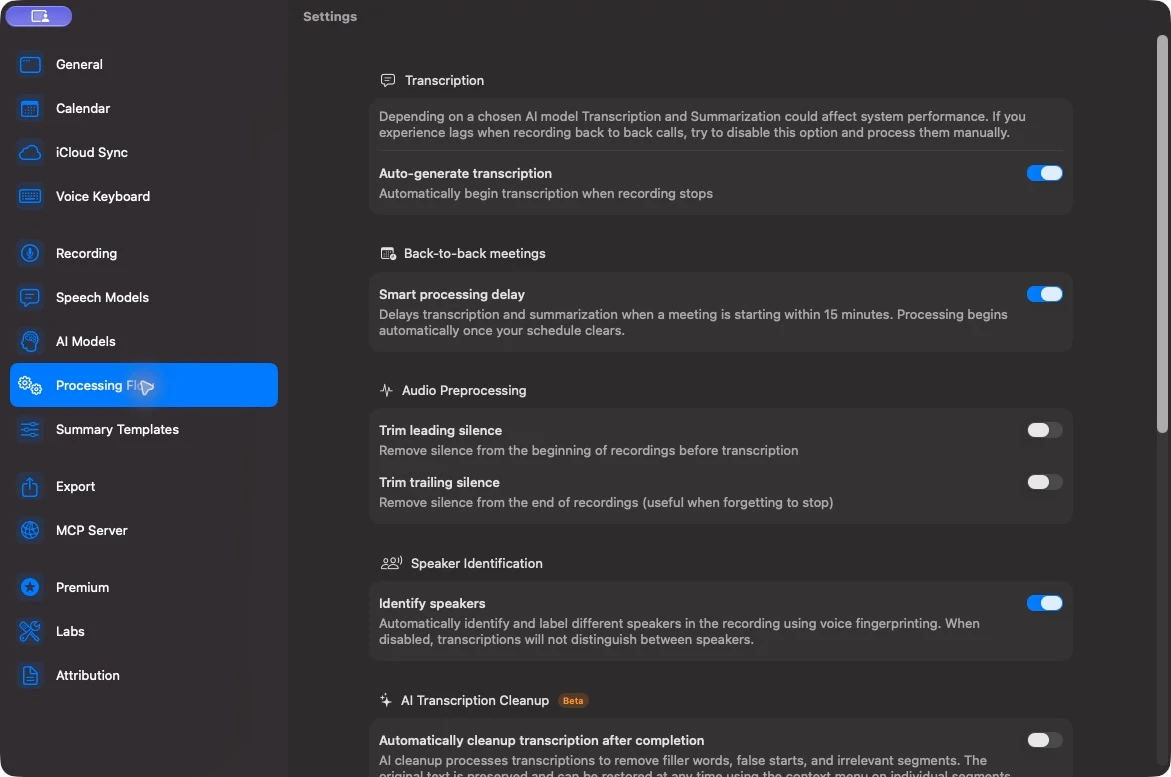
Local AI competes with other work for memory and compute. For back-to-back calls, Processing Flow → Smart processing delay can delay transcription and summarization when a calendar meeting starts within 15 minutes, then resume when your schedule clears.
To control processing yourself:
- Turn off Auto-generate transcription if you want to record first and transcribe later.
- Turn off Auto-generate summaries after transcription if you want to review transcripts before summarizing.
- Use the recording’s processing actions when ready. Select multiple recordings to use the bulk reprocessing actions.
Also check Pause before summarizing when new speakers are found and Skip summarization on low battery if a recording has finished transcribing but has no automatic summary yet.
Optional transcript cleanup
In Processing Flow, Automatically cleanup transcription after completion removes filler words and false starts using your selected AI configuration. It can also mark irrelevant segments. Original text is preserved and can be restored from an individual segment’s context menu. Segments you have edited manually are skipped.
Review cleanup before relying on exact quotes, names, or numbers. Leave it disabled if you prefer the original speech recognition output.
Manage memory and storage
Under AI Models → Model Configuration:
- Keep Check memory before loading a model enabled. A smaller model is the first thing to try when loading fails or your Mac becomes unresponsive.
- Leave Context Length at its starting value unless a workflow needs more context. Increasing it uses more memory; the slider is capped for the model and Mac.
- Use Models Folder → Choose… in the llama.cpp configuration to select a folder on another drive. It holds GGUF models and experimental MLX snapshots in an
MLXsubfolder. This points Summit to that folder; it does not move existing downloads there. Keep the drive connected during processing.
Delete unused downloaded models from the catalog to free space. Existing recordings and summaries remain available.
Some builds expose an experimental Engine picker for MLX. It requires Apple Silicon and uses different model files; downloading a GGUF model does not install its MLX equivalent.
If something fails
| Symptom | What to check |
|---|---|
| Download fails | Confirm network access and free disk space, then use Retry. Check that a custom models drive is connected. |
| Model cannot load | Choose a smaller model, close other memory-intensive apps, and retry. |
| Processing is slow | Try a smaller model or lower available quality level, and process when other heavy work has finished. |
| No automatic summary | Check Processing Flow, speaker-name prompts, calendar delay, battery limits, and whether the transcript contains speech. |
| Output is incomplete or inaccurate | Check the transcript and template first, then compare another model on the same recording. |
Local AI controls where text processing happens. Review iCloud sync, export, and MCP access separately if your goal is to keep a library on this Mac.