Chat and Live Queries
Ask questions about recordings, verify answers with sources, and schedule recurring recaps.
Last updated: October 24, 2026
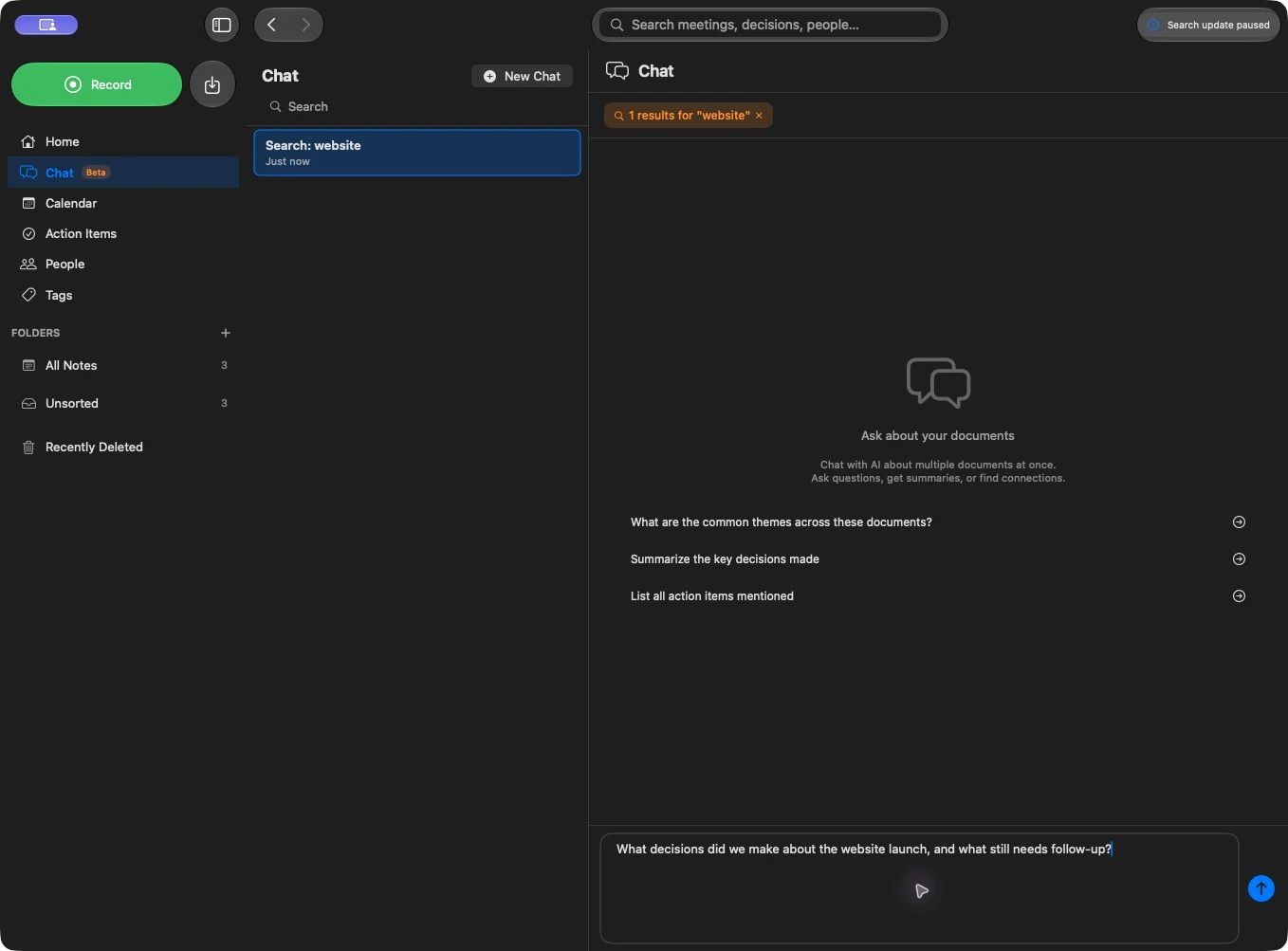
Use Chat to ask questions about a recording or a group of meetings. Summit finds relevant transcript material and uses the AI configuration in Settings → AI Models to answer. A transcript must be available before you can ask about what was said.
Ask about one recording
- Open a recording and select its Chat tab.
- Ask a specific question, such as “What did we decide about the launch date?”
- Follow up in the same conversation, or choose New Chat for a separate line of questions.
- Check the answer’s source references against the transcript.
You can select, rename, clear, and delete conversations from the chat session picker. Starting a new conversation leaves the recording and its existing summaries intact.
For questions about a moment, use recording-relative times: “What was discussed around minute 20?” or “Summarize the last five minutes.” In a conversation covering several meetings, name the meeting as well so the time reference is unambiguous.
Ask across recordings
Open the main Chat view for questions spanning your library. To start with a specific set, select several recordings and choose Chat from the selection bar. You can also search first and choose Ask AI to chat about the results.
Check the scope bar before asking. A focused set of meetings makes comparisons easier to verify and avoids mixing unrelated projects.
| Goal | Example question |
|---|---|
| Find a decision | “What did we decide about the onboarding deadline?” |
| Compare meetings | “How did the launch plan change between these two reviews?” |
| Extract commitments | “List agreed follow-ups, including the owner and deadline where stated.” |
| Prepare a follow-up | “Draft a short follow-up email based on the decisions in these meetings.” |
| Find open questions | “Which questions were left unresolved?” |
A drafted email is text you can review and use; Chat does not send it for you.
Add context with @mentions
Type @ in the composer, then select a person, meeting, or tag from the suggestions. Selected entities appear as context chips. Use the suggestions to disambiguate similar names rather than relying on typed text alone.
For example, select a person and ask “What concerns did they raise about the timeline?” Select two meetings and ask “Compare the commitments made in these calls.” Remove a chip when it should no longer shape the conversation.
A person mention can select meetings involving that person. If you want only that person’s words, say so explicitly: “Only include what Maya said.” Speaker-based answers depend on correct speaker identification and naming in the transcripts.
Verify answers with sources
Answers can include numbered sources and transcript references. Open a cited source to inspect the underlying meeting or passage; timestamped transcript sources help you return to the relevant moment.
Treat the transcript and recording as the evidence. AI can omit details or make mistakes, especially when names, numbers, or speaker labels are wrong. If an answer seems incomplete, narrow the question and ask for the supporting passage.
Long conversations also consume context. Starting New Chat and selecting a smaller scope can help if a request exceeds the model’s context limit.
Save a Live Query
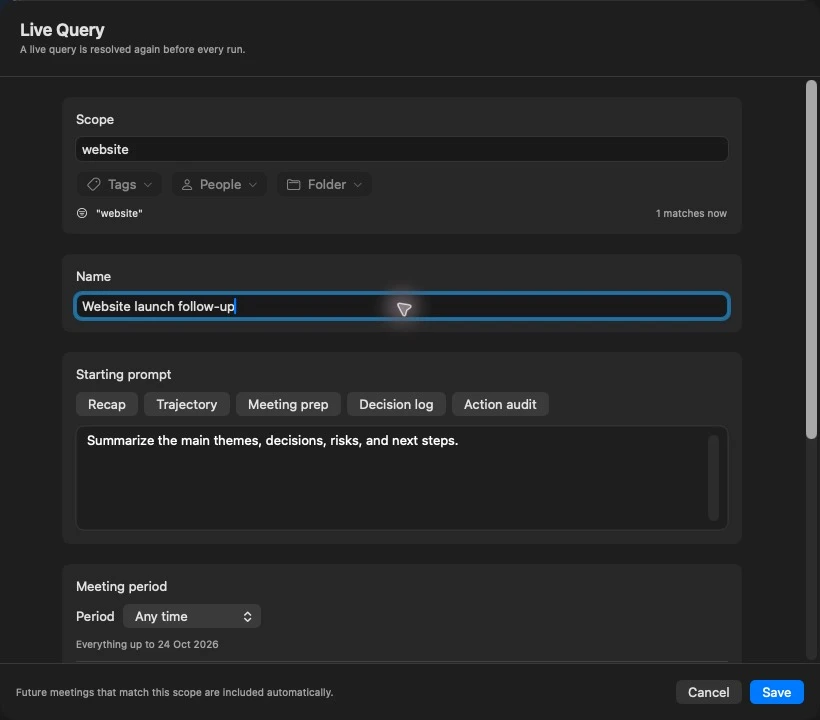
A Live Query saves a meeting selection rule and a starting prompt. Summit resolves that rule again each time it runs, so future meetings matching the scope can be included automatically.
- On Home, find Live Queries and choose Create New, or search first and choose Save as Live Query.
- Choose the Scope: text in titles, notes, or transcripts; people; tags; folders; and, where useful, a recurring calendar series.
- Review the current match count and give the query a name.
- Write a Starting prompt, or choose a preset. For example: “Summarize decisions, unresolved blockers, and committed follow-ups.”
- Choose a Meeting period and optionally limit the number of recent matching meetings.
- Choose a manual or recurring schedule, then Save.
Live Queries use active meetings in your library; archived meetings and items in Trash are excluded. Use Include subfolders and the Filter behavior controls when combining filters. “Match all” requires the selected conditions together; “Match any” broadens the selection. Check the match count after changing them.
Choose Run now to produce a recap and Open to view its linked conversation and ask follow-up questions. Editing the query updates the selection rule for future use; it does not rewrite past answers.
Schedule recurring recaps
Live Queries support Manual, Weekly, and Monthly schedules. Set the day and time, review the displayed time zone, and enable Run automatically for recurring runs.
The meeting period and schedule are separate. For example, a weekly Monday run can summarize Last full week, while another query can review the most recent ten matching meetings. Since the previous scheduled time follows the schedule’s boundaries; its first run can include earlier matching history because no period has been covered yet.
Scheduled runs are performed by Summit on this Mac. Keep Summit running and the required model or remote endpoint available. After downtime, Summit runs the latest due period rather than generating a separate recap for every missed schedule. Use Run now when you need an immediate result.
Use the query’s menu to Pause schedule, Resume schedule, or Edit it. Failed runs offer Retry. Recaps can use Notes, insights, action items, or transcripts. A run with no usable meeting content reports that result instead of inventing a recap.
Privacy
Local Chat runs with your local AI models. Remote Chat and remote Live Query recaps send the needed text to the selected endpoint, including your prompt, relevant meeting material, and conversation context. Review AI Models before using a cloud or network server with sensitive meetings.
Chat’s provider setting is separate from iCloud sync, exports, and the MCP server.