Organize Your Notes
Use folders, tags, people, attachments, and action items, and recover deleted notes.
Last updated: October 24, 2026
Use folders for a project’s main home, tags for themes that cross projects, and people to find meetings with the same participants. A note belongs to one folder and can have several tags and people.
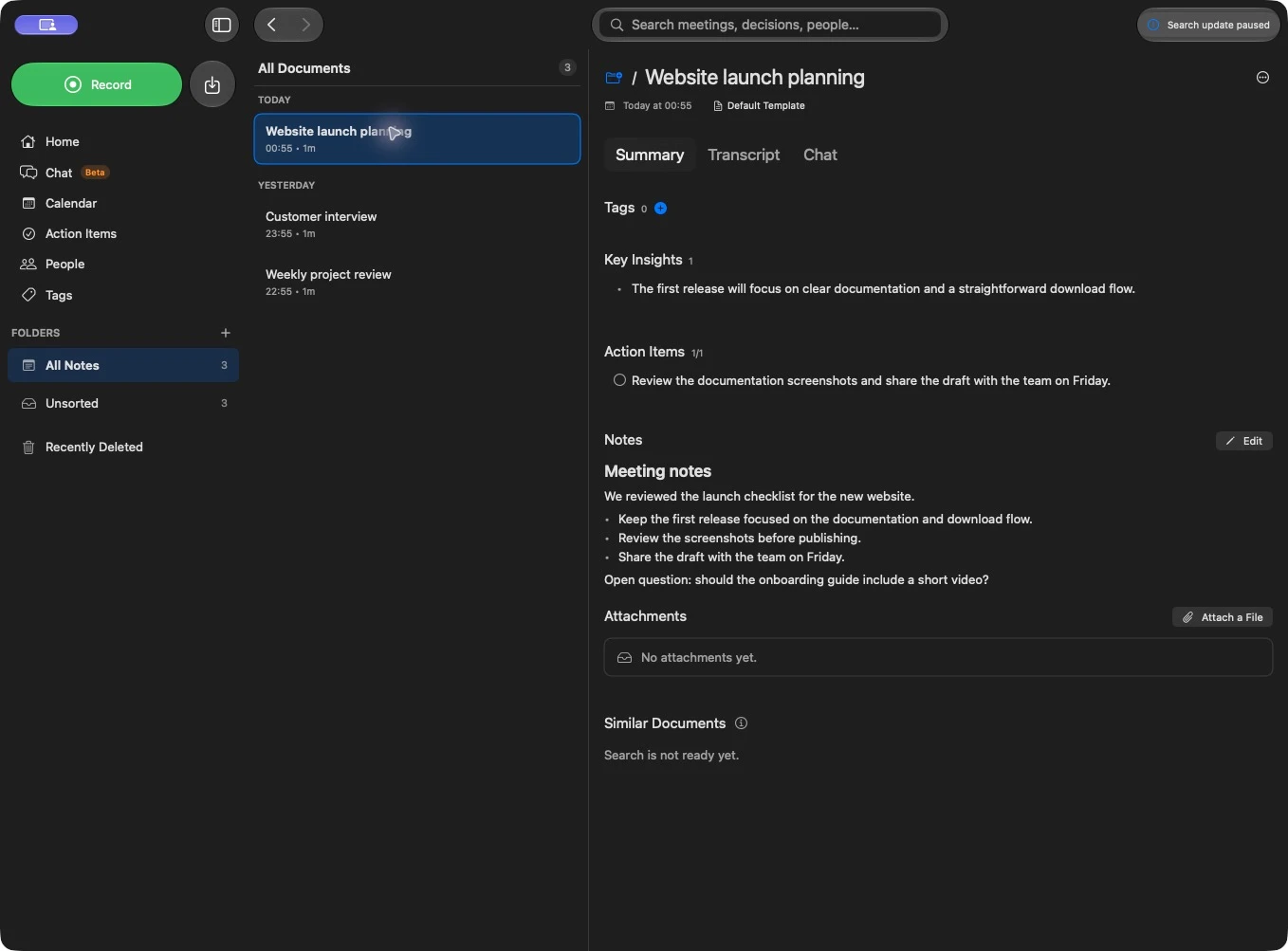
Set up a project folder
- Open Folders in the sidebar and choose New Folder.
- Enter a name. Optionally choose an icon and color.
- To create a subfolder, choose a Parent Folder. Summit supports one level of nesting: a top-level folder and its subfolders.
- Choose a Summarization Template if this project needs a consistent summary format.
- Add Shared Context, such as project terminology, participant roles, or ongoing commitments, then choose Save.
Shared context is added when generating summaries for documents in that folder. For example, a client folder can explain product abbreviations and who owns each workstream. See summary templates for controlling what the summary should cover.
To file an existing note, open its … menu or right-click its row, then choose Move to Folder. Remove from Folder returns it to the unfiled collection. You can also select several notes and move them together.
Deleting a folder also removes its subfolders. In the sidebar’s confirmation, leave Also move the … document(s) in this folder to Recently Deleted off to keep the notes in Unsorted. Turn it on only when you also want to delete those notes. Deleting a folder from the Folders overview keeps its documents.
Add tags across projects
In a document’s Tags section, use Add tag, enter a name, and choose Add. Select an existing suggestion to reuse a tag. When tags are already present, the add control appears when you hover over the section.
For example, use pricing, hiring, or follow-up across several client folders. Click a tag to find matching notes. Removing a tag from a document removes that association; use the Tags overview to manage the library’s tags.
Identify and correct people
With Settings → Processing Flow → Identify speakers enabled, Summit separates voices during processing. When it finds unnamed voices, the document shows New speakers found.
- Choose Assign New Speakers.
- Play an excerpt to identify the voice. Use another excerpt if the first is unclear.
- Select an existing person or enter a new name.
- Repeat for the remaining voices, or choose Skip for a voice you cannot identify.
Processing can pause at this step so the summary and action items use the names you supply. Choose Skip on the paused document to continue without naming everyone.
Right-click a person’s chip in a document to Rename, View Profile, or View Documents. If a voice has been assigned to the wrong person, use Not This Person to clear that assignment. Remove from Document removes the person from this note. Read any confirmation about changing an existing person across documents before applying it.
The People overview lets you find a person across meetings and manage names. Review speaker assignments before relying on an AI-generated assignee.
Keep supporting files with a meeting
In the document’s Attachments section, choose Attach a File, then select files in the Attach Files dialog. You can also drag files onto the document. Summit copies the files into the document’s storage folder. You can attach several files at once; folders cannot be attached.
Open an attachment to view it in its associated Mac app. Removing an attachment permanently deletes Summit’s stored copy, so use the removal confirmation carefully. The original file you attached remains in its original location.
To share the files with the note, include Attachments when you export the document. Attaching a file stores it with the note; it does not automatically add the file’s contents to the transcript.
Turn a meeting into follow-up work
After processing, review the document’s Action Items section:
- Click an item’s text to edit its wording, Assignee, Due Date, and Priority, then choose Save.
- Use Add action item to add a commitment the summary missed.
- Click the circle beside an item to mark it complete. Use Hide or Show to control completed items.
- Hover over an important item and use the lock control to protect it from regeneration before choosing Reprocess Summary.
Open Action Items in the sidebar to review work across meetings. Its search field finds action-item text, and its time-range menu helps focus on due work. Open the meeting title to return to the source document.
To copy work into Apple Reminders, right-click an item and choose Send to Reminders, or hover over the section header and choose Send all to Reminders. Grant Reminders access when macOS asks. Summit creates reminders in your default Reminders list with the item’s due date, priority, completion state, and a link to its source note. These are exported copies; subsequent changes are not a two-way sync.
Recover a deleted note
Delete Document moves a note and its recording to Recently Deleted for 30 days. Use the Undo action immediately after deletion, or recover it later:
- Open Recently Deleted in the sidebar.
- Select the note and review its read-only preview and days remaining.
- Choose Restore. You can select several notes and restore them together.
Restore the note before editing, playing its recording, or chatting about it. If its original folder has been removed, it returns to Unsorted. Deleted notes disappear from search and synced devices; restoring them makes them available again.
Delete Permanently… removes selected notes immediately. Empty removes everything in Recently Deleted. The confirmation can also remove tags and people that no other note uses. Permanent deletion removes the transcript, summary, and recording and cannot be undone. Notes left in Recently Deleted are permanently removed after the 30-day window.