Transcription and Processing
Choose speech models, review transcripts and speakers, and control cleanup and summary generation.
Last updated: October 24, 2026
Summit uses a speech model to turn audio into text. A separate AI model handles optional cleanup, summaries, insights, and chat. Configure speech recognition in Settings → Speech Models and cleanup or summarization models in Settings → AI Models.
Choose a speech engine
Open Settings → Speech Models → Transcription Engine:
| Engine | Model management |
|---|---|
| FluidAudio | Uses NVIDIA Parakeet. Required models download automatically on first use. |
| Whisper (OpenAI) | Choose a model, click Download, then Use Model. The selected final-transcription model shows Active. |
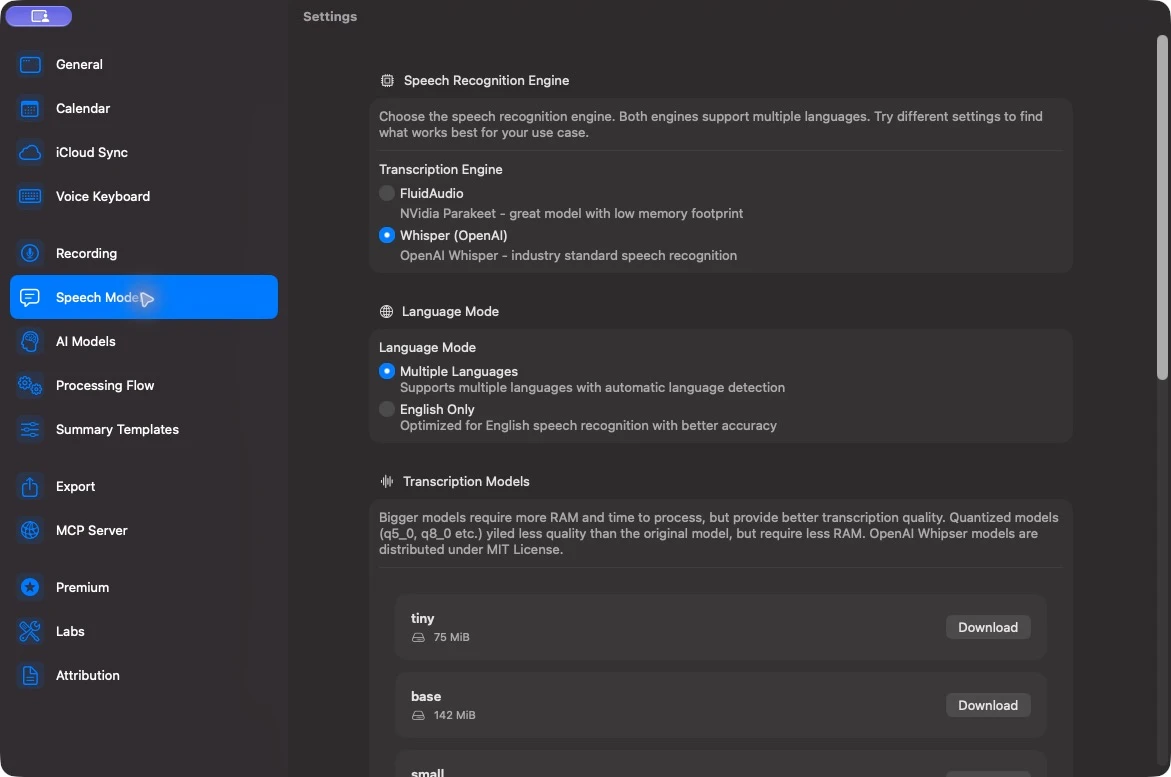
Both engines run speech recognition locally on your Mac. Download the models before you need to work offline. Bigger Whisper models use more disk space and memory and generally take longer to process a recording.
Under Language Mode, choose English Only for English recordings or Multiple Languages for automatic language detection. For FluidAudio, these modes select Parakeet v2 and v3 respectively. For Whisper, the mode filters the model list; download and select a suitable model after changing it.
For an individual note, open its context menu and choose Document Language. Select Auto or a specific language. Changing this setting reprocesses the note, so check that it is the note you intended to change.
Live and final transcripts
Enable Settings → Recording → Real-Time Transcription → Enabled for a live preview during recording. Live transcription uses FluidAudio, including when Whisper is selected for final transcription. The final pass runs on the saved audio and may produce different text. Turning live transcription off does not turn off audio recording or final transcription.
Control what happens after recording
Open Settings → Processing Flow:
- Auto-generate transcription starts final transcription when a recording stops. If it is off, use Transcribe in the note’s recording controls.
- Automatically cleanup transcription after completion runs optional AI cleanup. It can remove filler words and false starts; customize Cleanup Prompt if needed.
- Auto-generate summaries after transcription starts summarization after the transcript is ready. Use Reprocess Summary from the note’s context menu when you want to run it manually or regenerate it.
Choose the AI provider and models before using cleanup or summaries. Local AI can run these steps on your Mac; a cloud provider receives the text needed for its requests. Speech recognition remains local regardless of that choice.
Generate call summary creates a Markdown summary in Notes. On regeneration, Summit replaces the generated block while preserving your typed notes outside it. Summary templates control the focus of the generated results.
Review the transcript
Open a processed note and review the transcript alongside its audio. Click a transcript block or timestamp to seek to that part of the recording.
Right-click a transcript block to:
- Edit recognized text.
- Re-transcribe This Segment or Re-transcribe From Here to End using the saved audio.
- Show Original Text or Restore Original when AI cleanup changed it.
- Split Block… to separate a transcript block, or Assign Person to This Block… to correct its speaker.
Splitting a transcript block changes its text layout. To turn a long recording into separate notes with their own audio, use Split Recordings.
Identify speakers
Turn on Settings → Processing Flow → Identify speakers to distinguish voices in the final transcript. Recognition is imperfect, especially with overlapping speech or poor audio. Review names and assignments before relying on who said what.
Click a speaker name in the transcript to identify or correct the person. Use Assign Person to This Block… when only one block belongs to someone else.
Pause before summarizing when new speakers are found holds automatic summarization so you can name newly identified speakers first. This helps summaries and action items refer to people by name.
Understand delayed or missing processing
- Smart processing delay postpones transcription and summarization when another calendar meeting starts within 15 minutes. Processing resumes when your schedule clears.
- Skip summarization on low battery can skip automatic summaries below your chosen threshold. You can still start a summary manually.
- Trim leading silence and Trim trailing silence remove silence at the ends before transcription.
- Whisper’s Transcription Sensitivity controls can help when silence produces false words or quiet speech is missed. Change one control at a time and compare the same short recording.
If a step fails, use Retry in the note’s status message. If the transcript is empty, play the saved audio and check that the intended source was captured. See Troubleshooting for model, permission, and processing problems.
Keep audio if you may need it later
Delete audio files after processing in Processing Flow permanently removes the original audio after processing completes. It saves space but prevents later playback and re-transcription. Leave it off if you need to verify quotes, repair recognition, or preserve the recording.