Export and Share Notes
Export Markdown, attachments, audio, and video, or keep an Obsidian vault updated automatically.
Last updated: October 24, 2026
Export a single meeting when you need a shareable copy, or use automatic Markdown export to keep notes available in Obsidian, Logseq, or another folder-based tool.
Export one meeting
- Open the document’s … menu or right-click its row and choose Export…. You can also use File → Export… (Shift-Command-E) for the selected document.
- Choose the content to include: Text, Attachments, Audio, and Video when a screen recording exists.
- Choose Export, then pick the destination and filename.
Text on its own produces a Markdown (.md) file. Including attachments, audio, or video produces a ZIP archive. Unavailable options are disabled; video is offered only when the document has video.
Text honors the Export content and Include YAML frontmatter preferences in Settings → Export. Choose Insights + Transcription to include topics, action items, notes, and the transcript. The settings controls appear when Auto-export markdown is enabled.
Attachments are bundled in an Attachments folder. Audio is exported as audio.m4a, with the available microphone and system tracks combined. Video is exported as recording.mp4 with the document’s available audio. You can export media without selecting Text.
The suggested filename starts with the document’s date and title. Exported files are copies: editing one does not update the Summit document.
Copy or email a concise handoff
The document menu also offers:
- Copy Insights & Action Items to place the structured summary on the clipboard.
- Send via Email… to prepare a message in your mail app for review.
- Copy Link to copy a link that opens the document in Summit. A link does not upload or share the document’s contents; the recipient needs access to that note on their own device.
For follow-up tasks in Apple Reminders, see action items.
Keep a Markdown folder updated
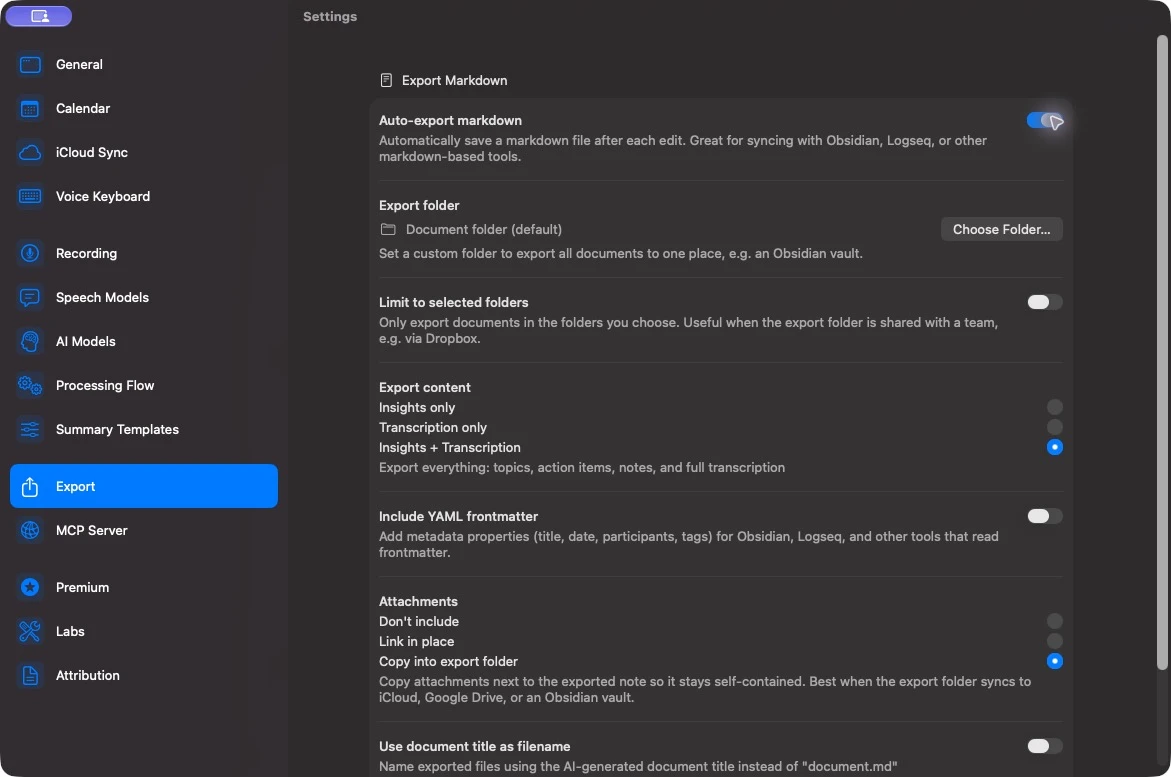
- Open Settings → Export and enable Auto-export markdown.
- Under Export folder, choose Choose Folder… and select your vault or export directory. Without a custom folder, Summit saves beside each document in its storage folder.
- Choose Export content: Insights only, Transcription only, or Insights + Transcription.
- Enable Include YAML frontmatter if your destination reads metadata such as the title, date, participants, and tags.
- Choose how to handle attachments.
- Use Export All to write existing documents with content. Later edits are exported automatically.
For an Obsidian vault, a custom export folder plus Copy into export folder for attachments keeps each exported note and its supporting files usable together.
| Attachment setting | Behavior |
|---|---|
| Don’t include | Leaves attachment references out of the Markdown |
| Link in place | Links to files in Summit’s document storage; moving the export can break those links |
| Copy into export folder | Copies attachments beside the exported note so it can travel with them |
With a custom export folder, files use the document title. With the default document folder, Use document title as filename lets you choose title-based names instead of document.md. When title-based names are in use, Add meeting date and time to filename gives them a chronological prefix. The date and time reflect when recording began, or when the note was created, in this Mac’s time zone.
Export only selected projects
If the export directory is shared with other people, enable Limit to selected folders before using Export All. Select only the Summit folders you want to export.
Selecting a parent selects its subfolders too; you can uncheck an individual subfolder to exclude it. Unfiled notes and notes in unselected folders are skipped. The content count beside Export All reflects the current filter.
Review the destination’s access settings and the selected content before placing meeting notes in a shared directory. Automatic export writes files to that directory; your chosen file-sync service controls who can access them.