Summary Templates
Control what summaries focus on with document, folder, and default templates.
Last updated: October 24, 2026
Summary templates tell Summit what to extract and emphasize in a transcript. Use them for recurring meeting types, client work, project reviews, or any workflow that needs a consistent focus.
Templates control the instructions for summary content. Choose the model in Settings → AI Models and automatic processing in Settings → Processing Flow.
Create or edit a template
- Open Settings → Summary Templates.
- Edit an existing template or click New Template.
- Enter a unique Template Name.
- Write the three prompts described below.
- Choose Create Template or Save Changes.
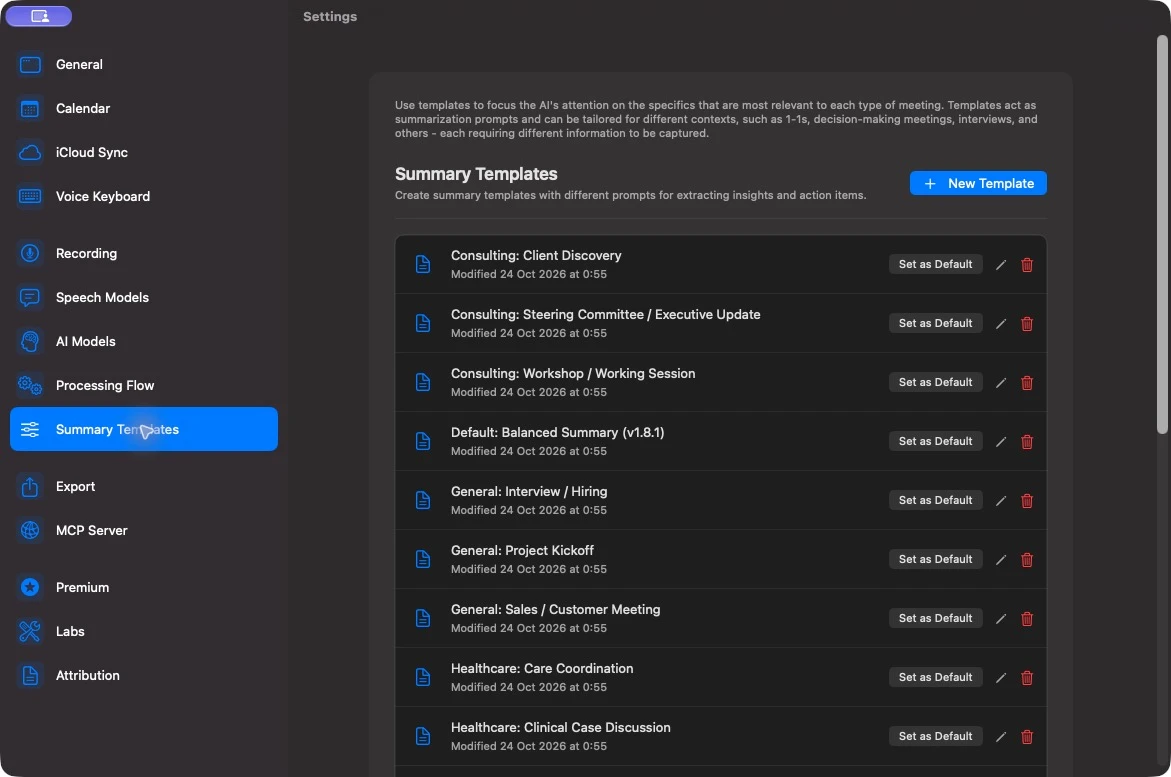
New templates start with Summit’s default prompts. You can restore an individual prompt using Reset to Default. The template library includes examples for workflows such as client discovery, one-on-ones, sales meetings, hiring, and project kickoffs.
| Prompt | What it controls |
|---|---|
| Key Insights Prompt | Which topics, findings, decisions, and risks to extract. |
| Action Items Prompt | What counts as a follow-up task and what details to preserve. |
| Call Summary Prompt | What the formatted summary added to Notes should focus on. Summit applies its TL;DR and section formatting automatically. |
The call summary is generated when Processing Flow → Generate call summary is enabled. Changing that prompt alone does not enable the feature.
Choose where a template applies
Summit uses the first available template in this order:
- The recording’s explicitly assigned template.
- Its folder’s template.
- The parent folder’s template, if the recording is in a subfolder without its own template.
- The template marked Set as Default in Settings.
- Summit’s global default prompts.
Assign to one recording
Open the recording and click its template label near the top. It may show Default Template, a directly assigned template, or the inherited folder template. Select the template to use for this recording.
Use Remove Template to remove the explicit assignment and return to the folder or default fallback. This removes the assignment, not the template itself.
Assign to a folder
Open the folder overview and use its template control, or the folder’s template action in the sidebar. Meetings in that folder use its template unless a recording has its own assignment. Subfolders without a template can inherit the parent’s template.
For example, assign a client discovery template to a client folder, then override one technical review recording with a technical template.
Set a default
In Settings → Summary Templates, choose Set as Default beside a template. This is the fallback for recordings without a recording or folder template. Remove Default restores the global fallback.
Add shared folder context
Folder context complements a template. Use it for background that applies to the folder’s meetings, such as a project glossary, product names, client constraints, or the team’s roles.
For a recording in a subfolder, Summit combines the parent’s context with the subfolder’s context. Keep facts current and distinguish background information from things actually agreed in a meeting. If you use remote AI, this context can be included in text sent to your endpoint.
Write useful prompts
Specify what to include, what to leave out, and how to handle missing information. A template cannot recover facts missing from the transcript.
For a project review, try the following as a starting point.
Key Insights Prompt
Extract the decisions, changes to scope or schedule, risks, and unresolved blockers.
Preserve stated numbers and dates. Explain the reason for a decision when it was given.
Separate a proposed idea from an agreed decision. Skip social conversation and logistics.
Do not invent missing facts.
Action Items Prompt
Extract concrete follow-up actions that participants explicitly agreed to take.
Include the owner and deadline only when stated. If either is missing, leave it unspecified.
Exclude hypothetical tasks, completed work, and general statements of interest.
Do not turn every discussion topic into a task.
Call Summary Prompt
Focus on the project's current state, what changed, key decisions, and the next checkpoint.
Make unresolved blockers easy to find. Keep proposals distinct from commitments.
Use concise wording suitable for someone who missed the meeting.
Test a template on a few representative recordings before making it a folder or app default. If output is unreliable, check transcript accuracy and speaker names as well as the prompt.
Apply changes to an existing summary
Editing or assigning a template does not regenerate an existing summary automatically.
- Open the recording and confirm its effective template.
- Use Reprocess Summary from its processing actions.
- Review the new insights, action items, and optional call summary.
Regeneration replaces generated summary content. When a call summary is added to Notes, Summit replaces its AI summary block while preserving your typed notes outside that block. Keep manual additions outside the generated block if you want them retained on future runs.
Delete a template
Delete a template from Summary Templates after reviewing the confirmation. Summit clears that template’s assignments from recordings and folders, which then use their fallback template. Deletion does not regenerate existing summaries.
For a recurring recap across meetings, use Chat and Live Queries; summary templates apply when generating each recording’s summary.