Choosing a Local Model
Choose a built-in AI model that fits your Mac and the work you want it to do.
Last updated: October 24, 2026
Choose a local model in Settings → AI Models → Local (on this machine). The model processes text for transcript cleanup, summaries, and chat inside Summit. Speech recognition has its own model selection in Speech Models.
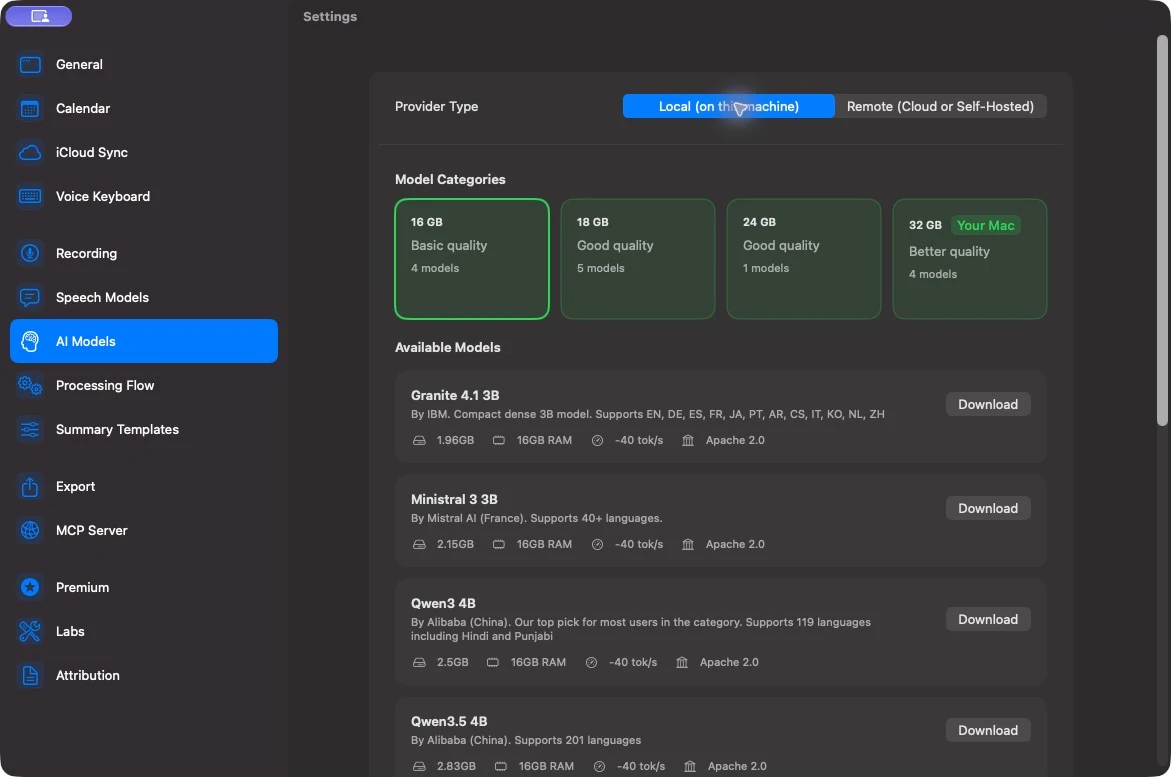
Start with the model catalog
The catalog groups models by memory categories, with Your Mac marking your Mac’s category. Use that category as a starting point, then check the model’s download size and memory estimate. The estimate is guidance: other open apps and the size of the model’s context also affect whether it fits.
Download a model, then click Use Model. Active identifies the selected model. You can keep several models downloaded and switch between them without changing existing summaries.
A useful comparison is to summarize the same representative recording with two models. Check whether each preserves names, decisions, numbers, and uncertainty. Choose based on that result and how responsive your Mac remains.
Understand Base, Med, and High
Some model families offer several quality levels. Each is a separate download of the same model at a different compression level, also called quantization.
| Level | What changes |
|---|---|
| Base | The smallest available version of that family, using Q4 quantization. |
| Med | A larger Q5 version, where available. |
| High | A larger Q6 or Q8 version, where available. |
A higher level uses more disk space and usually more memory. It can preserve more of the model’s original accuracy, but it does not guarantee a better summary for every transcript. Model family, transcript quality, language, and template instructions also matter. Compare sizes within a family rather than assuming every Base model is small.
The catalog’s speed figures are estimates, not a promise for your Mac or meeting.
Leave room for context
Model Configuration → Context Length controls how much text the local model can handle in one request. Context includes instructions and conversation history as well as transcript text. Increasing it consumes more memory; it does not make a model more accurate by itself.
Summit limits the slider according to the selected model and your Mac. Keep Check memory before loading a model enabled. If a model cannot load, choose a smaller one or close other memory-intensive apps before retrying.
For long recordings, Summit processes summaries in chunks. You do not need a context window as large as the entire transcript to generate a summary.
Disk space and downloads
The model list shows download progress and lets you cancel or retry. Delete unused downloaded models to recover space. Deleting a model does not delete your recordings or existing summaries, but you will need an available model for future AI processing.
A downloaded deprecated model may remain visible so you can continue using it. Read the deletion warning before removing it: it may no longer be offered for download afterward.
To use another drive for built-in models, open Model Configuration → Models Folder → Choose… in the llama.cpp configuration. GGUF files live in the selected folder; experimental MLX snapshots use its MLX subfolder. Selecting the folder grants Summit access to it and changes where both engines look for models; it does not move existing downloads. Keep that drive connected when using those models.
Separate AI processing from other data flows
Once its required models are downloaded, local text processing can run offline. Selecting Local controls Summit’s AI requests; it does not disable iCloud sync, exports, or access you grant through the MCP server.
For setup steps, see Local AI Setup. To choose between built-in, cloud, and self-hosted processing, see AI Models settings.