Remote AI Setup (Cloud and Self-Hosted)
Connect Summit to a cloud API or your own OpenAI-compatible AI server.
Last updated: October 24, 2026
Use Settings → AI Models → Remote (Cloud or Self-Hosted) to send text processing requests to a cloud provider or a server you manage. The selected configuration is used for AI transcript cleanup, summaries, and chat. Speech recognition remains a separate choice in Speech Models.
For AI that runs directly inside Summit, see Local AI Setup.
Get API access
Create an API key with the service you intend to use. Confirm that your account has access to a suitable text model and any required billing or quota.
| Summit provider | Where to start |
|---|---|
| OpenAI | OpenAI API keys. API billing is separate from a ChatGPT subscription; see OpenAI’s billing guide. |
| Anthropic | Create a key in the Claude Console using the official API key guide. |
| Google AI | Create or manage a Gemini API key in Google AI Studio using Google’s API key guide. |
| DeepSeek | Follow DeepSeek’s API setup guide. |
| OpenRouter | Create a key and choose a model using the OpenRouter quickstart. |
| Other | Obtain an OpenAI-compatible base URL, model identifier, and any required credentials from your server administrator or provider. |
Provider models, limits, prices, and data policies change. Use the provider’s current API documentation and account dashboard when selecting a model and setting spending limits.
Configure Summit
- Open Settings → AI Models.
- Select Remote (Cloud or Self-Hosted).
- Choose the Provider.
- Paste its API key. Credentials are stored in macOS Keychain.
- If you chose Other, enter the Base URL.
- Click Refresh Models, then choose a model available to your account. If the server does not support listing models, enter the exact model identifier manually.
- Try a short, non-sensitive recording with Reprocess Summary, or send a question in Chat.
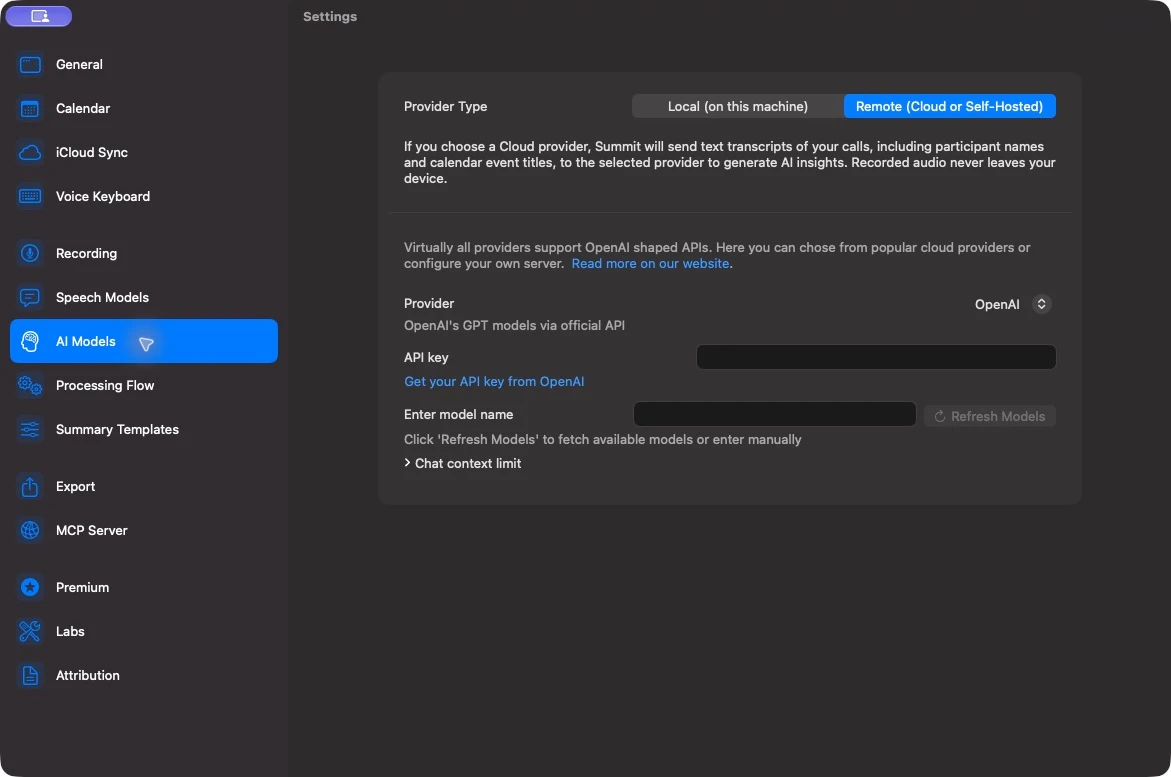
A successful model refresh confirms that discovery worked. It does not guarantee that every listed model supports Summit’s requests or that your account can generate with it. Test the actual summary or chat workflow as well.
Settings take effect as you change them. Existing summaries stay as they are; use Reprocess Summary to generate them again with the new configuration.
Connect your own server
Choose Other for an OpenAI-compatible server or company gateway. Enter its API base URL, rather than its web chat address or a full chat-completions endpoint.
For example, LM Studio on the same Mac commonly uses http://localhost:1234/v1. A server on another computer needs that computer’s reachable address instead of localhost.
Leave the API key blank only if the server permits unauthenticated requests. If it requires a token, enter that token in Summit. Keep the server running while Summit processes. Compatibility varies between servers and models, so test cleanup, summaries, and chat features you plan to use.
Set the chat context limit
Expand Chat context limit in the remote settings. 0 uses Summit’s conservative automatic limit. An explicit value should fit the context window supported by the selected model and endpoint.
Increasing this value may increase usage. It cannot extend the server’s actual context window. If chat reports that the request is too large, narrow its scope or start a new conversation before raising the limit.
Understand what is sent
Remote AI receives text needed for the operation. This can include transcript passages, speaker or participant names, meeting titles, template instructions, folder context, your questions, and relevant chat history. The AI requests do not upload the recorded audio files.
Review the provider’s data-use, logging, and retention settings, including any downstream providers behind a gateway. A server on your own network still receives this text and may keep logs.
This setting does not control iCloud sync, exports, or data made available through the MCP server.
Troubleshooting
| Symptom | Next step |
|---|---|
| API key is required | Enter a key for the selected named provider. A key for another provider will not work. |
| Models cannot be fetched | Check the key and base URL. If the endpoint does not support discovery, enter the documented model identifier manually. |
| Authentication or permission error | Check key validity, workspace or organization access, model access, billing, and the provider’s error details. |
| Model or endpoint not found | Refresh the list or check the exact model identifier. For Other, confirm the API base URL. |
| Rate or quota limit | Check the provider’s usage dashboard and limits before retrying. |
| Connection refused or timed out | Confirm the server is running and reachable from this Mac. For a local server, check the host and port. |
| Model refresh works but generation fails | Test another supported text model and inspect the error. Model listing and generation can have different access requirements. |
Avoid retrying repeatedly after a billing or permission error. Fix the account or endpoint configuration first. For local alternatives, see Local AI Setup.