Record and Import Audio
Record calls, voice notes, and system audio, mark important moments, or import an existing audio or video file.
Last updated: October 24, 2026
Summit records audio on your Mac, then turns it into a transcript and meeting notes. You can capture your microphone, the audio other apps play, or both.
Set up a recording
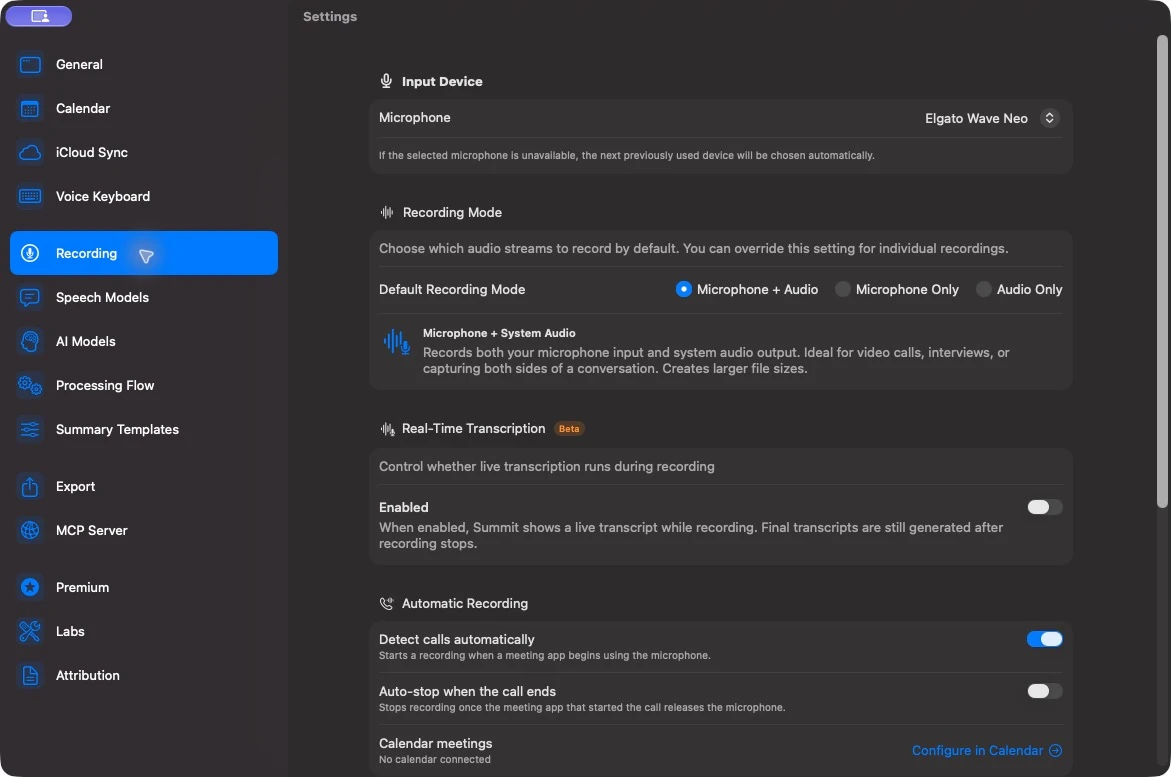
Open Summit → Settings → Recording. Choose your Microphone and Default Recording Mode:
| Mode | What it captures | Use it for |
|---|---|---|
| Microphone + Audio | Your microphone and audio played by other apps | Calls and remote interviews |
| Microphone Only | Your selected microphone | Voice notes and in-person conversations |
| Audio Only | Audio played by other apps | Presentations and recorded media |
Allow microphone and system audio access when Summit requests them. Screen Recording permission is optional: it is needed for screenshots and screen video, not ordinary audio recording.
Use headphones for calls to keep the other participants’ voices out of your microphone track. If Summit warns that your microphone is also the system playback device, choose a different playback output to avoid duplicated audio.
Record a call or voice note
- Select the folder where you want the recording to appear, if you use folders.
- Click Record in the sidebar. You can also start a recording from Summit’s menu bar menu or a calendar meeting.
- Check the microphone and speaker controls while speaking or playing audio. Their activity indicators help confirm that audio is arriving.
- Use the microphone or speaker button to switch that source off or on during the recording. The arrow beside the microphone lets you select another input device.
- Click Stop when finished.
The microphone and system audio are separate tracks. System audio includes other apps playing on your Mac, so close or mute unrelated audio sources before recording.
Keep the Mac awake during a recording. Sleeping the Mac can leave a gap in the captured audio.
Follow the live transcript
In Settings → Recording → Real-Time Transcription, turn Enabled on to show speech as it is recognized. This feature is labeled Beta. You can also enable live transcription from the recording view.
The live transcript is a preview and uses FluidAudio. The final transcript uses the engine selected in Settings → Speech Models and runs after you stop if automatic transcription is enabled. Model downloads require an internet connection; recognition runs locally after the models are available. See Transcription and Processing.
Mark important moments
Click the bookmark button during recording to mark the current time. Bookmarked moments remain attached to the note so you can return to them later. Use the screenshot button when a slide, diagram, or shared screen adds useful context; each screenshot also creates a bookmark.
You can also use Add Bookmark while reviewing a recording. Click transcript timestamps or timeline markers to return to the relevant audio.
Import an existing file
- Choose File → Import Audio/Video… or press Shift–Command–I. The import button beside Record opens the same picker.
- Select one audio or video file. You can also drag a supported file into Summit.
- Summit creates a note using the file name and starts transcription.
For video imports, Summit extracts the audio for transcription. This does not add a playable screen video to the note. Compatibility depends on the audio and video formats macOS can read. Files over 100 MB show a processing-time warning; this is not a 100 MB import limit.
Imports count toward the same note allowance as new recordings.
Recording reminders and automatic stopping
In Settings → Recording → Automatic Recording:
- Detect calls automatically enables call detection. When Summit recognizes a meeting app using the microphone, it can show a Start Recording prompt.
- Auto-stop when the call ends lets Summit stop an armed recording when the watched meeting app releases its microphone. Call detection must also be enabled. This follows microphone use, so it may differ from the meeting’s scheduled end time.
- Configure in Calendar opens the separate settings for scheduled recording.
To stop prompts for an app, use Ignore the app in its call detection prompt. Remove it from Ignored Apps in Recording settings to allow prompts again. For a recurring meeting you never want detected or automatically recorded, use Never Record This Series.
After recording
Settings → Processing Flow controls whether transcription, cleanup, and summaries start automatically. If processing is postponed, open the note and use Transcribe or Generate Summary. See Transcription and Processing for the full workflow, then organize, search, or export the result.