iCloud Sync and iPhone Recording
Pair the iPhone companion, move recordings to your Mac, and manage encrypted note sync.
Last updated: October 24, 2026
Summit’s iPhone companion records meetings away from your desk and sends them to Summit on your Mac for transcription and summarization. Finished notes, transcripts, topics, action items, folders, tags, and people sync through your private iCloud account.
Audio has a separate lifecycle: an iPhone recording uploads encrypted audio for the Mac to receive. After the Mac imports the recording and syncs the note back, that audio is removed from iCloud. Recordings made on the Mac do not upload their audio to iCloud. Keep a backup of your Mac’s recording storage if you need to preserve the originals.
Pair your Mac and iPhone
Sign in to the same iCloud account on both devices and make sure you have a network connection and available iCloud storage.
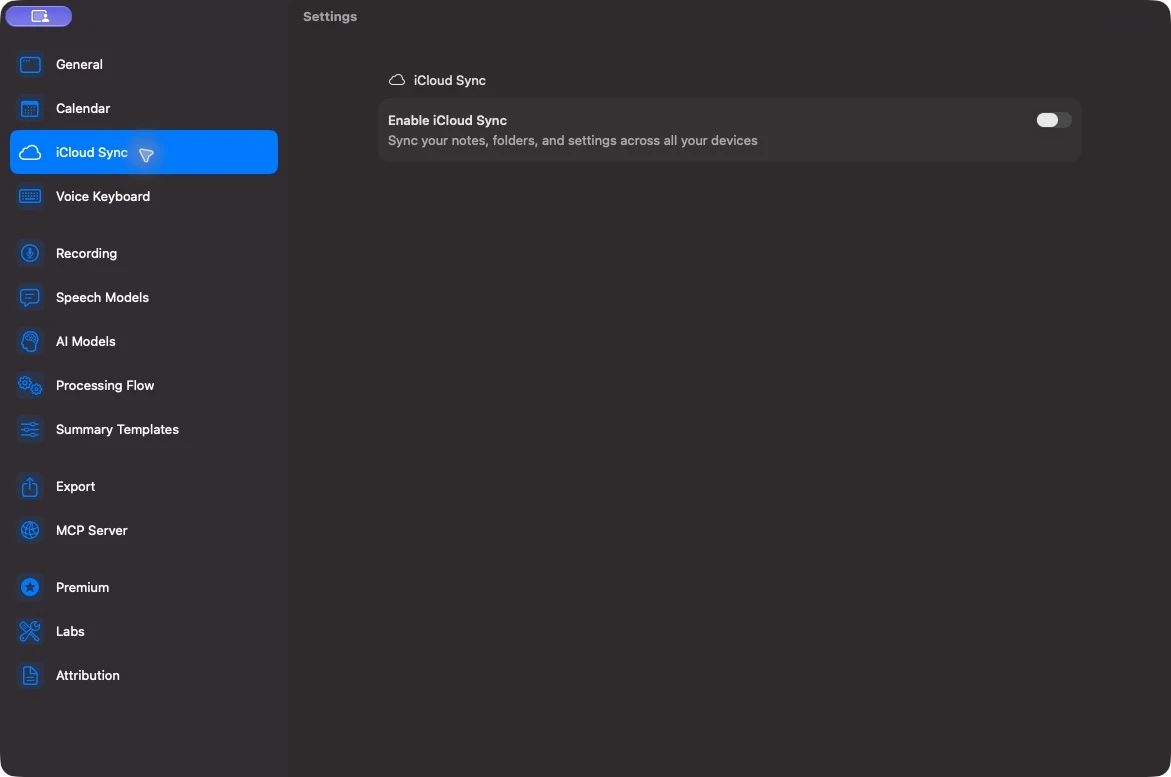
- On the Mac, open Settings → iCloud Sync and turn on Enable iCloud Sync.
- Check Security & Privacy. If Encryption Not Configured appears, choose Generate Encryption Key. If a 12-word seed phrase is displayed, save it somewhere private: that phrase is shown once, and Summit cannot recover it for you.
- With Encryption Active, choose Show QR Code on the Mac. An existing key can be transferred by QR code even when its original phrase is no longer available.
- On iPhone, open Summit’s Settings → Encryption → Scan QR Code and scan the Mac’s code. Alternatively, choose Enter Seed Phrase if you have saved the phrase for that key.
- Compare the displayed key fingerprints if you need to confirm both devices use the same key.
- On the Mac, choose Upload All to upload the existing local library. On iPhone, choose Refresh Now to check for notes.
The QR code transfers the encryption key, so treat it as privately as the seed phrase. Do not include either in screenshots or support messages.
Sync Now checks for updates. Upload All uploads the Mac’s local documents and folders again. The status and last-sync time help confirm whether work has finished.
Record on iPhone and finish on Mac
- Start a recording in the iPhone app and grant microphone access if asked.
- Stop the recording when the meeting ends. Keep the iPhone app available while its upload completes.
- Open Summit on the paired Mac and let it receive the recording.
- The Mac automatically queues transcription with its selected speech engine. Cleanup and summarization use the settings and models configured on the Mac.
- Refresh on iPhone to read the finished transcript, summary, and action items.
The Mac must be running Summit to receive and process new phone recordings. A recording waiting on the phone has not yet reached the Mac.
Upload only over Wi-Fi
On iPhone, enable Settings → Upload → Upload over Wi-Fi Only to hold recordings until a suitable connection is available. The app shows Waiting for Wi-Fi and a pending count. Personal hotspots count as cellular.
Turn the setting off to let queued recordings upload over the current connection. Failed uploads can appear as Waiting to Upload. Until upload succeeds, keep the recording on that iPhone.
Get a preview transcript on iPhone
Enable Settings → Transcription → Transcribe on This Device for an early transcript using Apple’s on-device speech recognition. Grant speech-recognition access when requested and download the speech model if the settings show Download Speech Model.
This feature depends on the iPhone and language supported by Apple’s on-device models. The preview stays on the phone. The Mac still transcribes the recording with its own engine and speaker identification; that Mac transcript becomes the saved transcript.
Replay phone recordings
Settings → Playback → Keep Recordings on iPhone offers Don’t Keep, 1 Day, 1 Week, and 30 Days. The default is 1 Week, measured from when upload finishes.
Only recordings made on that iPhone can be played there. After the Mac imports the recording and syncs the note back, iCloud no longer holds its audio. Delete Kept Recordings removes the phone’s retained playback copies; it does not remove the Mac’s copy or recordings still waiting to upload.
When sync stops
Start with the displayed status. Check your iCloud sign-in, available storage, and network connection, then try Sync Now on Mac or Refresh Now on iPhone.
If a Mac note disappears from the phone after deletion, check Recently Deleted on the Mac. Deletion removes the note from iCloud; restoring it on the Mac uploads it again. The phone does not provide a separate Recently Deleted library.
The encryption keys do not match
Summit stops sync when this Mac’s key differs from the one used for the iCloud data. Choose the recovery path based on which copy you need to preserve:
- Use the seed phrase iCloud was encrypted with: enter that phrase and choose Use Phrase. This keeps the existing iCloud data and leaves local notes intact.
- Keep this Mac’s key instead: Erase iCloud and Upload From This Mac… replaces the cloud copy with this Mac’s notes. Notes that exist only in iCloud can be lost. Use this only when the local Mac library is the copy you intend to keep.
The app can refuse a cloud replacement if unreadable phone recordings still need to be recovered. Use the current seed phrase in that case rather than erasing their only cloud copy.
Change the encryption key
If someone else may have seen your seed phrase, choose Change Encryption Key… on the Mac. Read the confirmation before continuing: Summit generates a new phrase, erases the iCloud copy, and uploads local notes encrypted with the new key.
Save the new phrase immediately. The previous phrase no longer works, and every other device stays disconnected until paired again. On iPhone, use Reset Encryption Key, then scan the Mac’s current QR code or enter the new phrase.
Delete Cloud Data… is a separate destructive action that removes the iCloud copy and disables sync on the Mac. Local Mac notes remain. It is not a routine way to refresh or repair a connection.