Troubleshooting and Maintenance
Recover interrupted processing, repair search, resolve recording issues, and reset preferences when needed.
Last updated: October 24, 2026
Start with the document’s status and error message. Recording, transcription, cleanup, and summarization are separate steps, so the right fix depends on where work stopped.
A recording has no transcript or summary
- Open the document and check whether its audio plays. Transcription needs an available recording.
- Open Settings → Processing Flow. If Auto-generate transcription is off, choose Transcribe in the document to start it manually.
- Check Smart processing delay. It can defer transcription and summarization when another meeting starts within 15 minutes; work resumes when the schedule clears.
- Open Settings → Speech Models and confirm your chosen speech engine’s model has downloaded.
- For a missing summary, check the summarization options in Processing Flow and the configured provider and models in AI Models. An empty transcript cannot produce a useful summary.
If the document says New speakers found and summarization is paused, choose Assign New Speakers and identify them, or Skip to continue. This is a review step, not a processing failure.
For a phone recording, check whether it is still Waiting for Wi-Fi or Waiting to Upload on iPhone, then keep Summit running on the paired Mac. See iCloud Sync and iPhone recording.
Transcription or summarization failed
Read the error in the document before retrying:
- For transcription, confirm the audio exists and plays, then check the engine and model in Speech Models.
- For summarization, confirm a transcript exists, then review the provider, model, connection, and credentials in AI Models. A local model may first need to finish downloading; a remote provider needs to be reachable.
- For inaccurate wording rather than a failure, review and edit the transcript before generating the summary again.
Choose Retry on the failed step after resolving its cause. A failed transcription is re-queued for transcription; a failed summary is re-queued for summarization. To regenerate a completed summary, use the document’s … → Reprocess Summary menu. Protect action items you want to keep before regeneration.
Use Cancel Processing when you need to stop active processing. Let the cancellation finish before starting another attempt.
A document is stuck after a crash
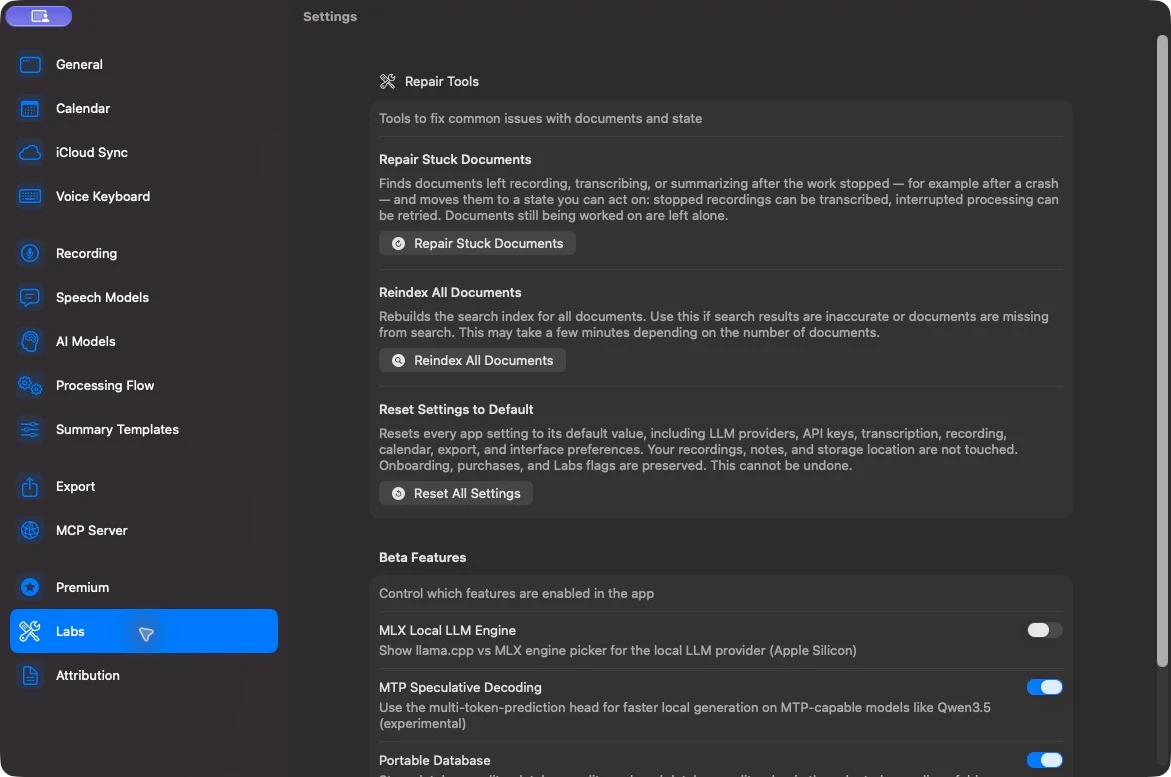
Open Settings → Labs and choose Repair Stuck Documents. Confirm Repair when prompted.
The tool finds notes left in recording or processing states after their work stopped. It moves interrupted recordings to a stopped state, and interrupted processing to a failed state that can be retried. It leaves documents with live recording or queued processing work alone.
Review the reported result, then open the affected note and choose Transcribe or Retry as appropriate. Repairing a state does not recreate missing audio or run transcription for you.
Search misses an existing note
Clear search text, dates, and filter chips, and try a distinctive phrase. Check Recently Deleted if the note is also absent from the library.
If the note exists but the results are missing or outdated, open Settings → Labs → Reindex All Documents and confirm Reindex. Keep Summit open while it rebuilds the search index. This can take several minutes for a large library.
The result reports success or identifies documents and transcript passages that could not be indexed. If some entries fail, try again later and include that result when contacting support. Reindexing updates search data; it does not retranscribe recordings.
Recording or playback has no sound
First check the selected input and audio sources in Settings → Recording. Play the document and compare whether microphone audio, system audio, or both are missing.
Check Summit’s microphone access in System Settings → Privacy & Security → Microphone. Screen video and screenshot capture also need the macOS screen-recording permission. Follow Summit’s permission prompt and reopen the app if macOS requests it.
For Bluetooth input issues, check that the expected device is connected and selected. Make a short test recording and play it back before the next meeting. See recording for the capture workflow.
Reminders export is unavailable
Allow Summit under System Settings → Privacy & Security → Reminders. If the app says no Reminders list is available, open Apple Reminders and create a list, then try Send to Reminders again.
Reset preferences as a last step
In Settings → Labs, Reset All Settings restores preferences including AI-provider configurations, API keys, transcription, recording, calendar, export, and interface settings. It keeps recordings, notes, the storage location, onboarding state, purchases, and Labs flags.
Record any configuration you need to set up again before confirming. This reset cannot be undone. Choose Relaunch Summit after it finishes so the running app uses the restored defaults.
Resetting preferences is not a way to recover deleted notes. Use Recently Deleted within the 30-day recovery window.
Contact support
If a problem continues, contact Summit support with the app version, the step that failed, the displayed error, and whether the recording plays. Include a screenshot of the status when useful. Keep meeting content, API keys, MCP tokens, seed phrases, and encryption QR codes out of the report unless you deliberately intend to share them.