AI Models
Configure built-in, cloud, or self-hosted AI for cleanup, summaries, and chat.
Last updated: October 24, 2026
Open Settings → AI Models to choose where Summit processes text. This selection is used for AI transcript cleanup, summary generation, and chat. Audio transcription is configured separately in Settings → Speech Models.
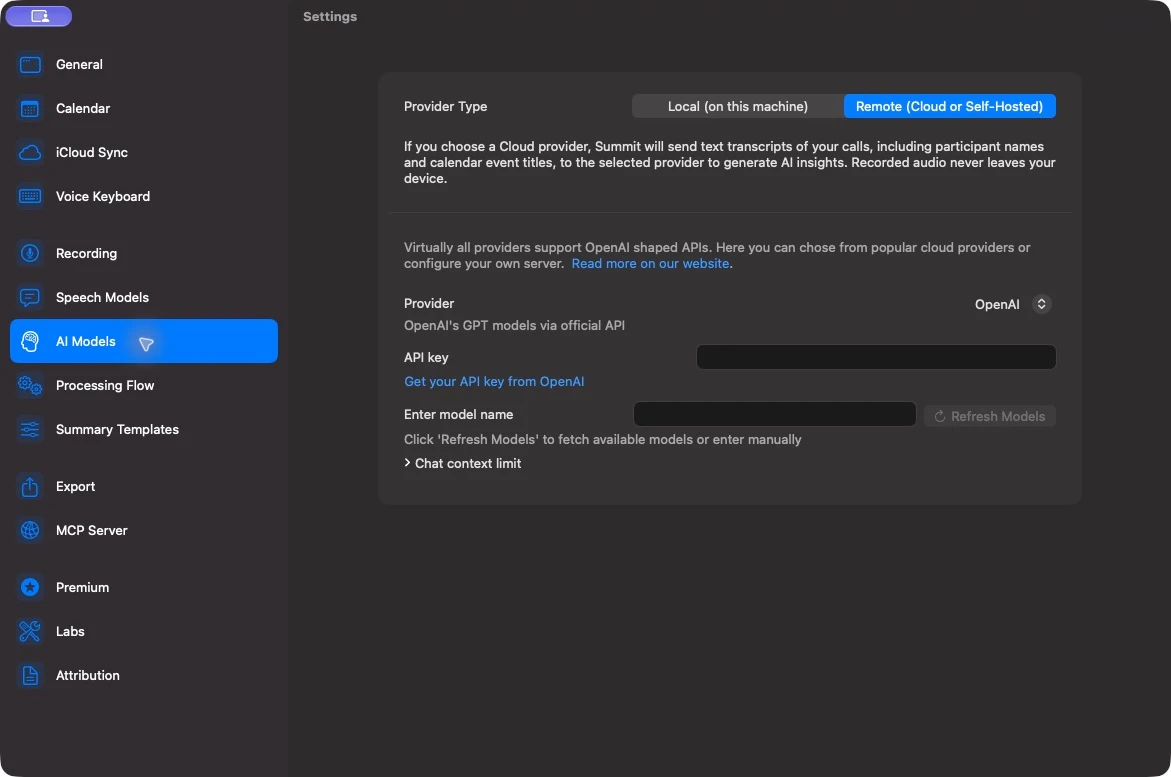
Choose where AI runs
| Option | How it works | What to prepare |
|---|---|---|
| Local (on this machine) | Summit runs a downloaded language model inside the app. | Disk space and enough available memory for the selected model and context. |
| Remote (Cloud or Self-Hosted) with a cloud provider | Summit sends text requests to the selected provider’s API. | An API key, access to a supported model, network access, and any required provider billing. |
| Remote (Cloud or Self-Hosted) with Other | Summit sends text requests to your OpenAI-compatible server or gateway. | A running server, its base URL, model identifier, and credentials if required. |
Start with Local AI Setup, Remote AI Setup, or the LM Studio guide.
Speed and output quality depend on the model, hardware or service, transcript, and prompt. Try a representative recording before committing to a setup.
Local models
Download a model and choose Use Model. The Active badge shows the current selection. The catalog groups models by memory category and may offer Base, Med, and High versions within a family. See Choosing a Local Model for how to compare them.
The Mac app requires Apple Silicon and macOS 15 or later. Its standard built-in engine uses llama.cpp and GGUF model files; practical model size and performance depend on your hardware. Some builds expose an experimental Engine picker for MLX, which also requires Apple Silicon and uses a separate model catalog.
Under Model Configuration, you can change Context Length, choose a Models Folder, and control Check memory before loading a model. Leave the memory check enabled unless you are diagnosing a specific issue.
The folder picker appears in the llama.cpp configuration. Its selected folder holds GGUF models and, in an MLX subfolder, experimental MLX snapshots. Changing it does not move existing downloads.
Chat models
With the local llama.cpp engine, Summit can use a curated model for fast chat decisions and tool calls, then your selected model for deeper analysis. The Chat models section reports whether that additional model is downloaded. Until it is ready, chat uses your selected model.
Cloud endpoints and the experimental MLX engine use their selected model without this local two-model setup. These chat roles are managed by Summit; cleanup and summary generation continue to use your selected AI configuration.
Remote settings
Select Remote (Cloud or Self-Hosted), then choose OpenAI, Anthropic, Google AI, DeepSeek, OpenRouter, or Other.
- Enter the provider’s API key. Summit stores provider credentials in macOS Keychain.
- For Other, enter the server’s Base URL as well.
- Click Refresh Models, then select a model your account or server can use. If model discovery is unavailable, enter the exact model identifier manually.
- Test with a short, non-sensitive recording or question.
Changing provider or model affects subsequent processing. It does not rewrite existing summaries or chat answers. Model access, pricing, and quota belong to your provider account; a consumer chat subscription does not necessarily include API access.
Chat context limit
The remote settings include Chat context limit. Leave Token limit at 0 for Summit’s conservative automatic limit. Set an explicit value only when you know the selected model and endpoint support it.
A larger value lets chat include more context but may increase usage and latency. A value above the server’s supported limit can cause requests to fail. When a chat becomes too large, try a new conversation or narrow the meeting scope.
Control when processing runs
AI Models selects the processor. Settings → Processing Flow selects when to use it:
- Auto-generate transcription starts speech recognition after recording stops.
- Automatically cleanup transcription after completion uses AI to clean transcript text while preserving the original text.
- Auto-generate summaries after transcription starts summary generation automatically.
- Generate call summary adds a formatted AI summary to Notes, in addition to extracted insights and action items.
- Smart processing delay, speaker naming, and battery settings can defer automatic processing.
Use Summary Templates to change what the summary focuses on. See Summary Templates for the assignment and regeneration workflow.
What remote AI receives
AI requests contain text, rather than the recorded audio files. Depending on the operation, that text can include transcript passages, speaker or participant names, meeting titles, template instructions, folder context, your question, and relevant conversation history. Review the destination’s retention and data-use policies before using sensitive material.
A self-hosted endpoint receives that text too. localhost points to this Mac; a network address sends it to another computer. Separate features such as iCloud sync, export, and the MCP server have their own data flows. Choosing Local does not turn those features off.