Voice Keyboard
Dictate into another app using a global shortcut or the floating Summit widget.
Last updated: October 24, 2026
Voice Keyboard turns a short dictation into text and pastes it at the cursor in another app. Speech recognition runs locally using Parakeet, the model used by FluidAudio transcription. Dictation is separate from recording a meeting note.
Set up Voice Keyboard
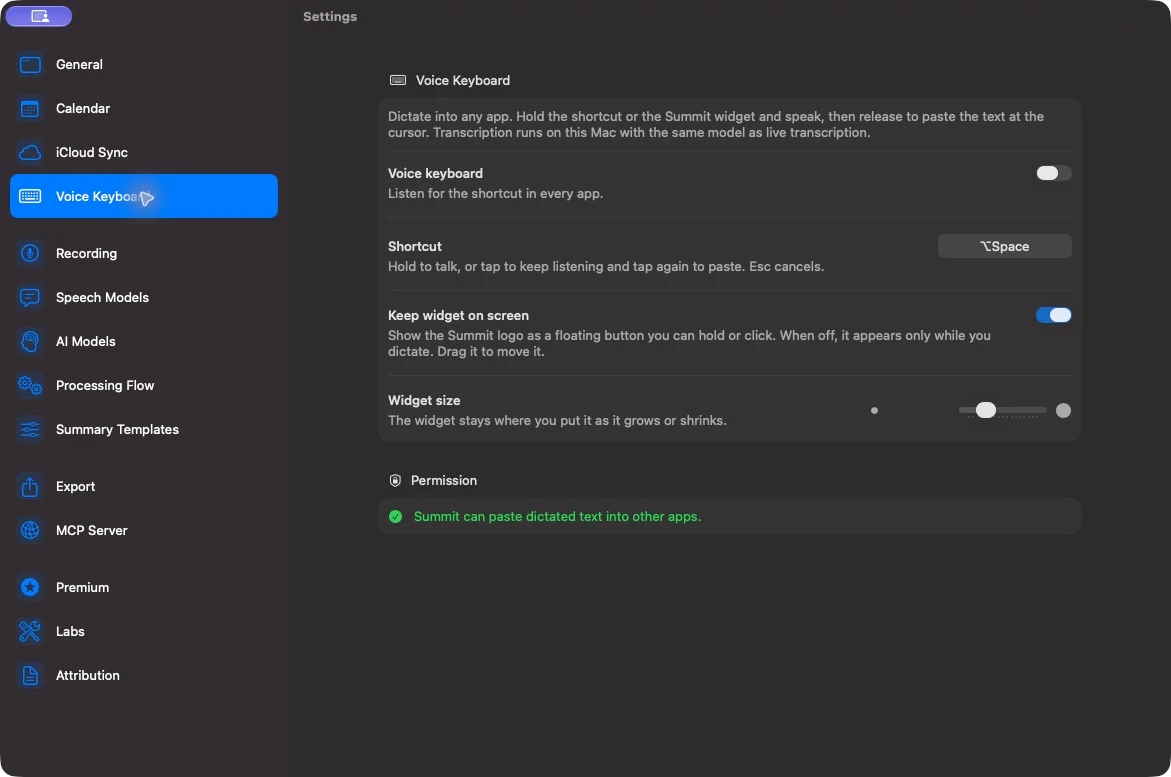
- Open Summit → Settings → Voice Keyboard.
- Turn Voice keyboard on.
- Keep the default Option–Space shortcut, or click Shortcut and press your preferred key combination.
- Click Open Accessibility Settings… and enable Summit if you want it to paste automatically into other apps.
Microphone access is also required. If macOS asks for it on your first attempt, allow access and start dictating again. Voice Keyboard uses the microphone selected in Settings → Recording.
The Parakeet model downloads on first use if it is not already available. Finish that download before using dictation offline. Language Mode in Settings → Speech Models selects English-only or multilingual recognition. Voice Keyboard uses Parakeet even if you selected Whisper for meeting transcription.
Hold to talk
- Put the cursor in the app where you want the text.
- Hold Option–Space, or your chosen shortcut, and speak.
- Release the keys. Summit finishes recognition and pastes the text.
The text near the widget is a live preview. The final result is decoded after you finish and may differ from that preview.
Dictate without holding a key
Tap the shortcut once to keep listening. Tap it again to finish and paste. Press Esc while listening to cancel without pasting.
A dictation stops automatically after five minutes and pastes what it recognized. For a long conversation you want to keep as a note, use Record and Import Audio.
Use the floating widget
Enable Keep widget on screen to leave the Summit logo visible. Hold it to talk, or click it once to keep listening and again to finish. Drag it to another position; use Widget size to resize it.
When Keep widget on screen is off, the widget appears only while you dictate. The keyboard shortcut still works.
If the text is not pasted
Without Accessibility access, Summit leaves the recognized text on the clipboard and shows Copied — press ⌘V to paste. Return to your target app and press Command–V yourself.
For automatic pasting, enable Summit in System Settings → Privacy & Security → Accessibility. Put the cursor in an editable field before finishing dictation. With automatic pasting, Summit restores the clipboard contents it temporarily replaced.
If the shortcut is already registered by another app, Voice Keyboard settings show an error. Choose a different combination. If your build reports that local transcription is unavailable, Voice Keyboard cannot be enabled in that build.