Calendars and Scheduled Recording
Connect system calendars, join and record meetings, and choose which events Summit records automatically.
Last updated: October 24, 2026
Connect your calendars to see upcoming meetings, use event titles for recordings, and schedule recording. Summit reads calendars available through macOS, including Google and Exchange accounts added to the system.
Connect a calendar
- Check that the events appear in Apple’s Calendar app. If needed, add your account in System Settings → Internet Accounts and enable its Calendars option.
- Open Summit → Settings → Calendar.
- Connect System Calendars and allow calendar access when macOS asks.
- Under Select Calendars, enable the calendars you want Summit to use.
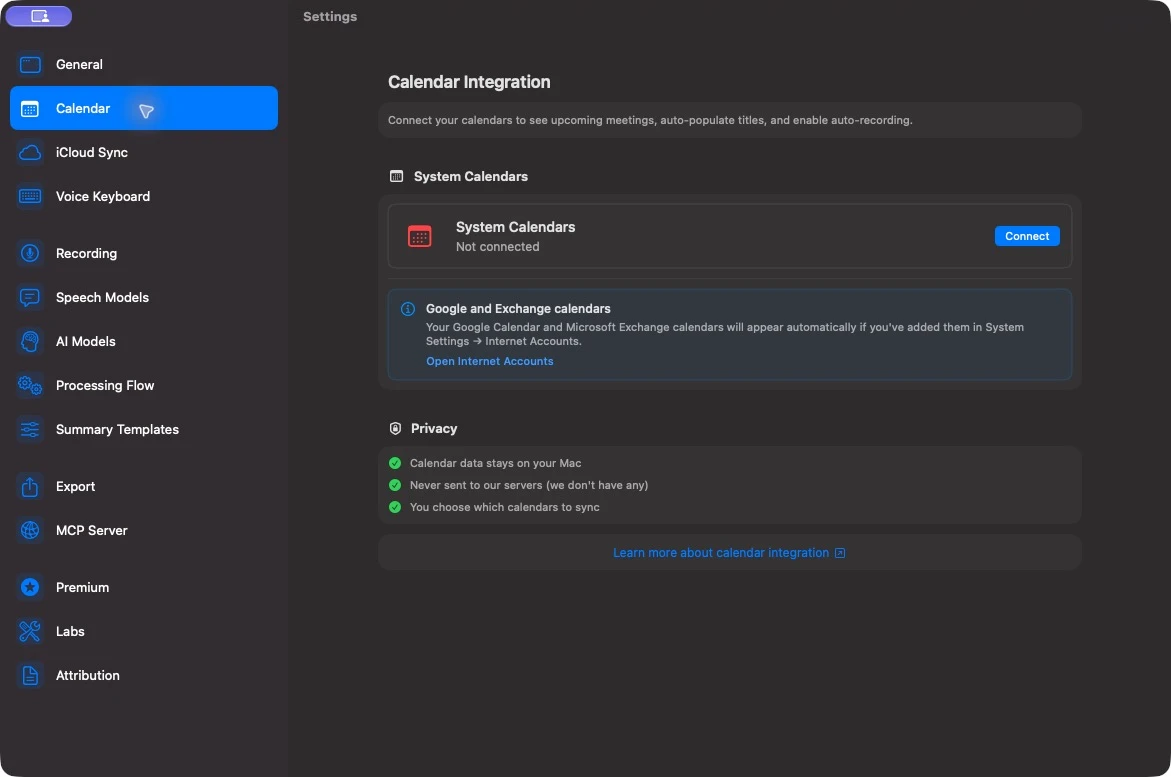
Google Workspace and Microsoft Exchange calendars use the same system connection. You do not sign into those accounts separately inside Summit. Account availability depends on your macOS and organization settings.
Use Hide disabled to shorten the calendar list, or Show all to bring disabled calendars back into view. Under Display, adjust Days in week view and Week starts on.
Join and record a meeting
Open an upcoming event from Home or Calendar to review its details. For a meeting in progress or starting within ten minutes, the Home meeting row offers Join & Record when it has a supported video link, or Record when it does not.
Join & Record opens the meeting link and starts Summit’s local recording. Summit does not join as a meeting participant. The recording is linked to the calendar event and uses its title.
An event with a recording from that occurrence offers an action to open the note. Only one recording can run at a time; if another meeting is recording, stop it before starting a second one.
Prepare for a recurring meeting
Open the event details and look for Preparation. When earlier occurrences have linked recordings, Previously Recorded Events lets you open those notes. Choose Summarize in Chat to start a conversation over the previous recordings and generate a recap before the next meeting.
Open Action Items lists unresolved tasks from earlier recordings in the series. Click an item to open its source note, or click its completion circle to mark it as resolved. These sections appear when relevant history is available. See Chat and Live Queries for follow-up questions and scheduled recaps.
Set scheduled recording defaults
In Settings → Calendar → Recording, choose Auto-record:
| Mode | Default behavior |
|---|---|
| Disabled | No events are armed by default. Enable individual meetings yourself. |
| Video calls only | Arms eligible events with recognized meeting links. |
| All meetings | Arms eligible calendar events, whether or not they have a meeting link. |
Both automatic modes exclude all-day events and events whose titles contain focus, ooo, out of office, blocked, lunch, or break, ignoring capitalization. An event titled “Lunch with the team,” for example, will not be armed by these defaults even if it contains a video link. Start a recording manually if you want to capture it.
Video-link detection checks an event’s URL, location, and notes for Zoom, Google Meet, Microsoft Teams, Webex, GoToMeeting, and FaceTime links.
Enable Include tentative and unanswered events if those events should also be eligible. Review your selected calendars and individual overrides before relying on scheduled recording.
Keep Summit running and your Mac awake before the meeting starts. Scheduled recording uses the event’s start time. Launching Summit after a meeting has already begun does not automatically record the remainder; start that recording manually.
The event’s scheduled end can produce a reminder to stop recording. It does not by itself stop the audio capture. For call-based automatic stopping, enable Detect calls automatically and Auto-stop when the call ends in Settings → Recording. See Record and Import Audio.
Control an individual meeting
- Use Arm auto-record or Disarm auto-record on an upcoming meeting, or click its Auto-Recording On/Off badge in the event details.
- Set Recording Folder in the event details to place its recordings in a specific folder, overriding the folder selected in the sidebar. For a recurring event, this applies to the whole series.
- Enable Never Record This Series for a recurring series you want excluded from scheduled recording and call detection prompts. Arming auto-record again clears that exclusion.
- Use Detach Recording to remove the event’s link to a note. The note stays in your library.
If events are missing
- Confirm the event appears in Apple’s Calendar app. If it does not, fix the account connection in System Settings → Internet Accounts first.
- Check System Settings → Privacy & Security → Calendars and allow Summit to access calendars.
- In Summit’s Calendar settings, connect System Calendars and select the relevant calendar. Use Show all if it is hidden.
- Check the date you are viewing in Home or Calendar.
For a recording that did not start, also check its auto-record override, Never Record This Series, your remaining note allowance, and whether another recording was already active. See Troubleshooting.
Calendar data and privacy
macOS manages your calendar account credentials. Summit reads the event details macOS makes available, such as titles, times, attendees, locations, descriptions, and meeting links. Calendar access does not itself send those details to Summit’s servers. If you use AI features with a cloud provider, review the context those features include and your provider settings.