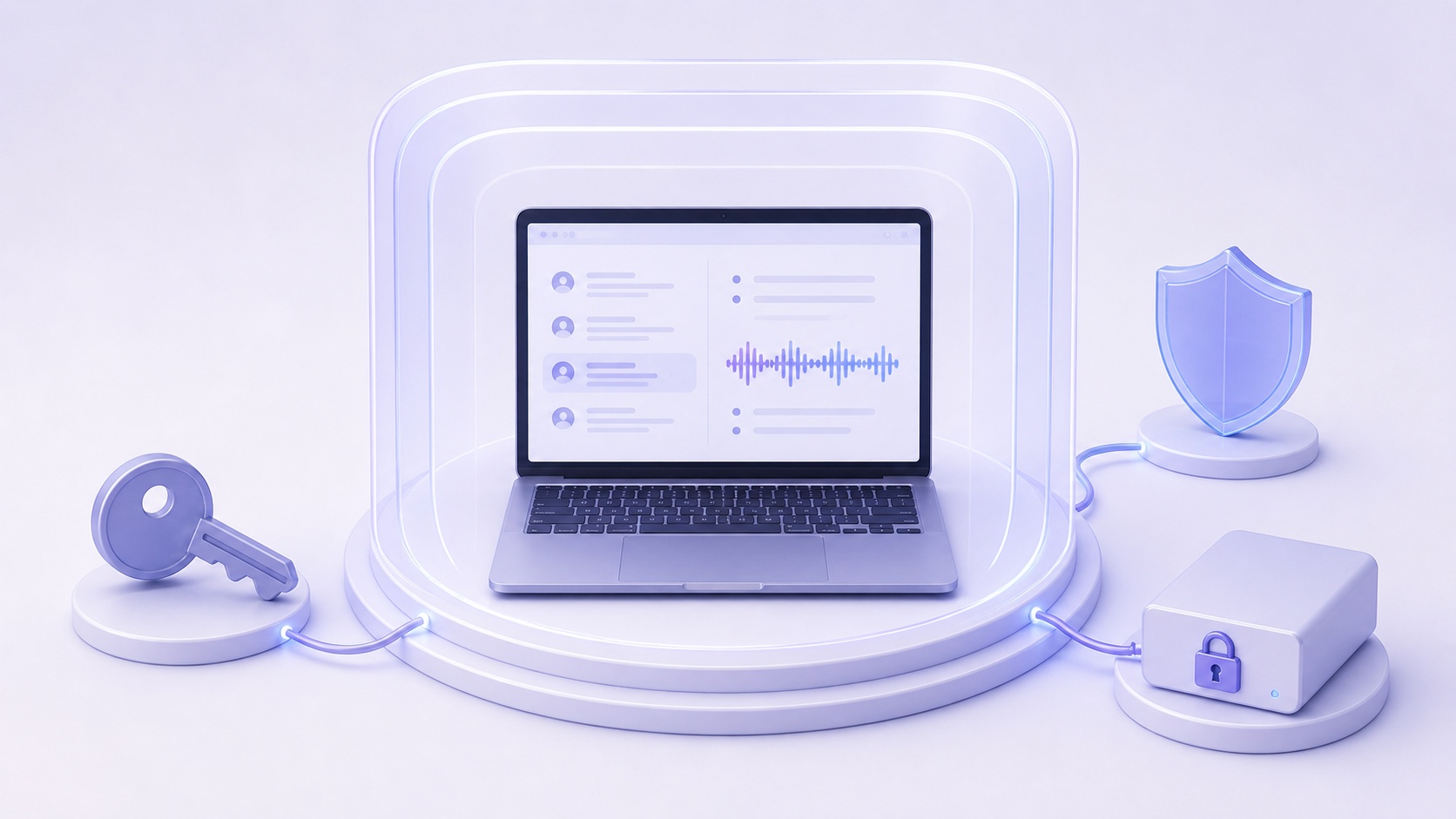
Local AI Meeting Notes Still Need Endpoint Security: A Mac Hardening Checklist
Local processing removes a cloud data path, not every security risk. A practical Mac checklist for protecting meeting recordings, transcripts, summaries, backups, and exports.
Local AI changes the security model for meeting notes. It does not eliminate the need for one.
When recording, transcription, summarization, and search run on your Mac, the raw conversation does not have to pass through a meeting-assistant vendor’s servers. That removes a meaningful attack surface: no vendor transcript repository, no hosted meeting page, and no server-side account for an attacker to target.
But the data still exists. It now sits on a laptop that can be lost, stolen, shared, backed up, infected, unlocked in a conference room, or connected to cloud services by the user.
The honest local-first claim is therefore not “your meeting notes cannot leak.” It is:
You can keep the primary processing and storage boundary on a device you control—and then secure that device accordingly.
This guide explains what that means on a Mac. It uses Summit’s published data-flow and security architecture as a concrete example, including the limitations the product documents about its own local storage.
Local-first removes one threat model and creates another
A conventional cloud meeting assistant typically copies some combination of audio, video, transcripts, summaries, attendee details, and metadata to infrastructure operated by the vendor or its subprocessors. Security then depends on the vendor’s authentication, authorization, tenant isolation, retention, incident response, and deletion processes.
A local-first workflow can avoid many of those dependencies. The tradeoff is that endpoint controls carry more weight.
| Risk | Cloud meeting service | Local-first meeting app |
|---|---|---|
| Vendor account takeover | May expose hosted meeting history | No hosted Summit transcript account to take over |
| Server or tenant-isolation failure | May affect many customers | Primary meeting library remains on the Mac |
| Lost or stolen laptop | Local caches may be exposed | The primary library may be exposed without disk protection |
| Malware or unlocked-session access | Can steal tokens or visible data | Can read or export locally accessible meeting data |
| Backup exposure | Depends on vendor backup controls | Depends on how the user backs up the Mac |
| Deliberate export or sync | Integrations create copies | User-selected exports and services create copies |
Local processing materially reduces centralized and vendor-side risk. It concentrates responsibility at the endpoint instead of making risk disappear.
Know exactly what your meeting app stores
Hardening starts with a data map. For Summit, the current architecture page says:
- audio recordings are ordinary
.m4afiles in the app container or a folder chosen by the user; - transcripts, summaries, topics, and action items are stored in a SQLite database;
- search embeddings and the full-text index are generated and stored locally;
- hosted-model API keys are stored in the macOS Keychain;
- Markdown auto-export, the local MCP server, and encrypted iCloud sync are off by default; and
- choosing a hosted LLM sends relevant transcript excerpts to that provider, while choosing Local Models keeps summarization on the Mac.
One limitation matters especially for endpoint security: Summit does not separately encrypt its local SQLite database or audio files at the application layer. The files rely on the app sandbox, macOS permissions, and FileVault when enabled.
That is not the same as storing the library in plaintext on a public server. It does mean that FileVault, account security, and physical control of the Mac are part of the meeting-data security boundary.
1. Enable FileVault—and verify that it is actually on
FileVault ties protection of the Mac’s data volume to authorized credentials. Apple’s FileVault documentation explains that Apple silicon and T2 Macs encrypt storage automatically, but enabling FileVault adds credential-backed protection that helps prevent someone from decrypting or accessing the data without a login password.
On a personal Mac:
- Open System Settings → Privacy & Security → FileVault.
- Confirm that FileVault is on.
- Store the recovery key somewhere other than the Mac.
- Do not put the recovery key in an unencrypted note stored on the same device.
On a managed fleet, verify that every authorized user is enabled for FileVault and that recovery-key escrow follows organizational policy. A recovery key that nobody can retrieve is an availability problem; a broadly accessible recovery key is a confidentiality problem.
FileVault primarily protects data at rest when an unauthorized person cannot log in. It does not stop malware or another person from reading files after the authorized user has unlocked the Mac.
2. Make the unlocked session short-lived
Full-disk encryption is least helpful when a Mac remains unlocked.
Use a short display-sleep interval and require authentication immediately after sleep or the screen saver begins. Lock the screen before leaving a meeting room, coworking desk, airport lounge, or shared home office. Avoid shared macOS accounts; each person should have an individual account so access can be removed without changing everyone else’s credentials.
For sensitive work, review who has administrator privileges. Daily work generally should not require every user to be a local administrator. Also review Screen Sharing, Remote Login, file sharing, and other inbound services rather than assuming they are off.
These controls sound ordinary because they are. A sophisticated privacy architecture can still be defeated by an unattended, unlocked laptop.
3. Keep macOS and the meeting app current
Local processing reduces dependence on a vendor backend, but it increases dependence on the security of the operating system, app, and local model supply chain.
Install supported macOS security updates promptly. Keep Summit current through the App Store, and remove meeting tools you no longer use. Review security-sensitive permissions periodically under Privacy & Security, especially Microphone, Screen & System Audio Recording, Accessibility, Full Disk Access, and Automation.
A meeting app needs some powerful permissions to capture both sides of a call. Those permissions should belong only to software you still trust and use.
Summit’s architecture page also discloses that its downloaded model catalogue does not currently checksum-verify every model artifact. Transport security and pinned revisions provide some protection, but this remains a documented supply-chain gap rather than a reason to treat model downloads as risk-free.
4. Encrypt every backup that can contain meeting data
A secure Mac with an unencrypted backup is not a secure system.
Apple’s Time Machine guidance provides an Encrypt Backup option when configuring a disk. Use it, protect the backup password separately, and verify that new backups complete successfully. If your organization uses another backup agent, confirm both encryption and recovery behavior instead of relying on a dashboard that merely says “protected.”
Also account for local Time Machine snapshots, cloned disks, migration archives, and old Macs. Retiring a computer does not retire copies of its meeting library automatically.
Test a restore before you need one. Security includes availability: losing the only decryption or recovery key can be as final as losing the data itself.
5. Treat exports as new security boundaries
Local-first control lasts only while the data stays within the local boundary.
Summit can export or copy notes into destinations chosen by the user. Markdown auto-export is off by default, but if enabled, the selected folder may be synchronized by iCloud Drive, Dropbox, Google Drive, OneDrive, Git, or an enterprise document system. An action item exported to Calendar or Reminders may sync through the account behind that list.
For each export destination, ask:
- Who can access the destination?
- Does it generate public or organization-wide links?
- How long are deleted files retained?
- Are historical versions preserved?
- Does a backup or search index copy the content again?
- Can administrators or support staff access it?
Export is not a flaw. It is a transfer of control. The destination’s permissions and retention rules become part of the meeting-data system.
6. Check the model setting before a sensitive meeting
“The app supports local AI” does not mean every configured workflow is local.
With Summit’s Local Models setting, transcription, summarization, and search can run on the Mac. If the OpenAI-compatible provider is configured to use OpenAI, Anthropic, Google, DeepSeek, OpenRouter, or another hosted endpoint, prompt text and relevant transcript excerpts go to that provider over TLS. The provider’s retention, access, regional, and training terms then matter.
Before recording a legally privileged, HR, board, security-incident, healthcare, or similarly sensitive discussion:
- Confirm that capture is appropriate and that required notice or consent has been handled.
- Check which summarization provider is selected.
- Use a local model if the content should not leave the device.
- Disable auto-export or sync paths that are inappropriate for the meeting.
- Decide who should receive the resulting notes and how long they should remain.
Local processing does not create permission to record. Recording, employment, professional, and privacy rules remain separate questions.
7. Use retention, not accumulation, as the default
A local transcript can become a long-lived liability even if it never touches a vendor server.
Set retention periods by meeting category. Routine project notes may need a short lifecycle; regulated records may require approved preservation; privileged or highly sensitive meetings may be inappropriate to capture at all. Pause deletion when a legal hold or investigation requires preservation.
When deleting, remember every copy: the Summit library, user-selected recording folders, exported Markdown, email attachments, synced folders, backups, and any hosted-model or collaboration service used downstream.
Do not promise secure deletion unless you have verified what macOS, SSD storage, backups, and connected services actually do. A more defensible policy describes when the organization deletes active copies and how long backups age out.
8. Add organizational controls for managed Macs
For teams, endpoint security should not depend on every employee remembering a checklist.
Use device management where appropriate to enforce FileVault, screen-lock requirements, supported macOS versions, app installation rules, and remote lock or wipe. Define whether personal Macs may hold meeting data. Maintain an offboarding workflow that removes accounts, recovers organizational records where required, and wipes managed devices.
Pair technical controls with a short meeting policy:
- meetings that must never be recorded;
- when participant notice or consent is required;
- approved models and export destinations;
- who may access notes;
- retention periods; and
- how to report a lost device or mistaken share.
The goal is not to turn every employee into a security engineer. It is to make the safe path the normal path.
A practical Mac hardening checklist
Before treating a local meeting workflow as ready for sensitive use, confirm:
- FileVault is enabled and recovery material is stored safely.
- The Mac locks quickly and requires authentication immediately.
- Users have individual accounts and administrator access is limited.
- macOS and the meeting app receive timely updates.
- Microphone, screen-recording, accessibility, sharing, and remote-access permissions have been reviewed.
- Backups are encrypted and restores have been tested.
- Local versus hosted model settings are documented and understood.
- Export, calendar, sync, MCP, and collaboration paths have been reviewed.
- Retention rules cover both the primary library and copies.
- Lost-device, offboarding, and incident-response procedures exist.
The bottom line
Cloud avoidance is not a complete security program. It is a valuable architectural decision that removes a large, centralized copy of sensitive conversations from the normal workflow.
Local-first then gives the user or organization a clearer job: protect the Mac, constrain the ways data leaves it, and delete records when their purpose ends.
Summit makes that job auditable by publishing where each data type sits, what can leave the device, which features are opt-in, and where the current limitations are. Read the full security architecture, enable FileVault, choose Local Models for a fully local workflow, and treat every export as a deliberate new boundary.
This article provides general security and privacy information, not legal advice or a guarantee of security. Threat models, organizational requirements, and product behavior vary. Verify current settings and documentation before using any meeting tool for sensitive information.
Sources: Summit data-flow and security architecture, Apple FileVault guidance, Apple Platform Security: FileVault, Apple Time Machine guidance, and NIST SP 800-111, Guide to Storage Encryption Technologies for End User Devices.