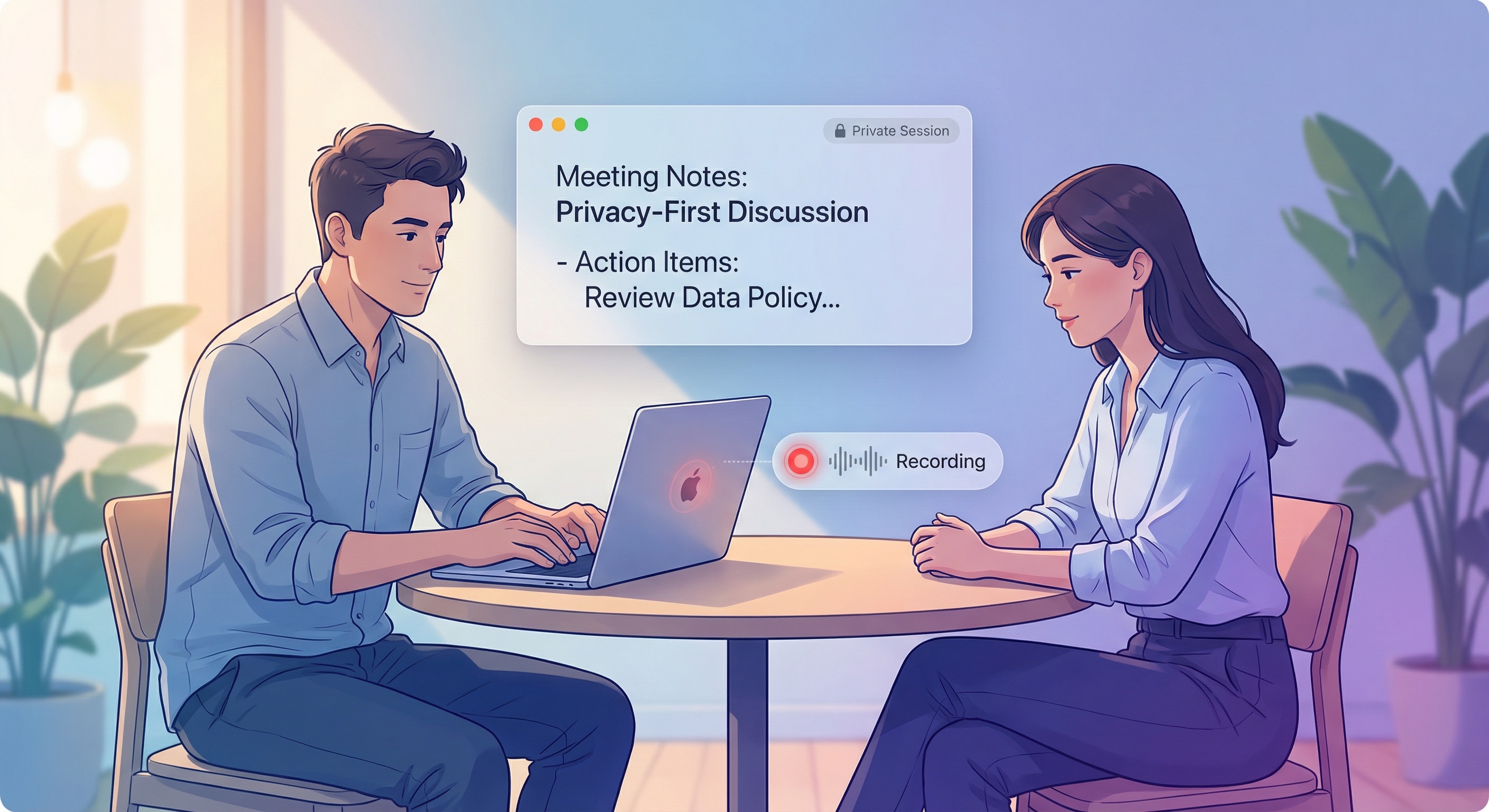
AI Notes Beyond Video Calls: In-Person Meetings and Mac Speakerphone Capture
How to take AI notes from in-person conversations and phone calls played through a speaker near your Mac, and the limits of that setup. It does not cover direct recording of cellular calls on an iPhone.
You can take AI notes from an in-person conversation or a phone call played through a speaker near your Mac. This guide covers what the Mac can hear and the limits of that setup; it does not promise direct recording of cellular calls on an iPhone. Obtain any required consent before recording.
The conversations outside scheduled calls
Many important conversations never get a video link:
-
In-person meetings. The investor meeting. The client pitch. The 1:1 with your manager.
-
Impromptu discussions. Someone pulls you aside after a meeting, and a quick sync turns into a 45-minute strategy session. No calendar invite, no video link.
-
Phone calls. A prospect or client calls while you are at your desk, and the call stays on the phone.
For these conversations, many people fall back to handwritten notes or try to remember everything afterwards.
How note-takers approach them
Many meeting assistants are built around joining a video call as a participant: a bot joins your Zoom or Google Meet and receives the audio stream. That works well when there is a call to join, and some services also offer mobile or desktop recording for conversations that happen elsewhere. Check what a specific product supports, where it processes audio, and whether recordings are uploaded before you rely on it for in-person or phone conversations.
Local AI changes the equation
What if the transcription happened on your device?
No upload needed. No bot participant required. No waiting for cloud processing.
This is how Summit approaches the problem. Your Mac’s microphone captures what it can hear—an in-person conversation, or a phone call on speaker next to the Mac. Calls made from apps on your Mac can be captured as system audio. The transcription runs locally using models that live on your device.
With Local Models selected for summaries, the whole flow works offline. If you choose a cloud AI provider, summarization needs a connection and sends transcript text to that provider.
How offline mode works
Summit’s offline mode is simple:
-
Start recording. Click the menu bar icon or use a keyboard shortcut. No calendar event needed.
-
Have your conversation. Phone call, in-person meeting, voice memo to yourself—any audio your Mac can capture.
-
Stop recording. The local AI processes the audio and generates a transcript.
-
Get your summary. Same AI-powered notes you’d get from a video call: key points, action items, decisions made.
With Local Models selected, no meeting data leaves your Mac and no internet connection is needed during or after the recording. The transcript and summary are ready shortly after you stop, depending on the length of the recording and your Mac.
Phone calls: the forgotten use case
If you take business calls on your phone, you’ve probably wished for automatic notes.
Summit runs on your Mac, so it works with what the Mac can hear:
-
Speakerphone near your Mac. Put the call on speaker and keep the phone close to the Mac. The microphone picks up both sides; the other person’s audio quality depends on the phone’s speaker volume and the room.
-
Call from your Mac. If you take the call in FaceTime Audio or another calling app on the Mac, Summit can capture the system audio directly.
Summit does not record cellular calls on the iPhone itself. If the call stays on the phone without a speaker near your Mac, Summit will not hear it.
The point is: you’re not limited to scheduled video calls. Audio that reaches your Mac can become searchable, summarized meeting notes.
In-person meetings: notes without the phone on the table
Recording in-person meetings always felt awkward. Put a phone on the table, hit record, and suddenly everyone’s aware they’re being recorded.
A laptop is different. It’s already there. You’re probably taking notes anyway.
With Summit running, you get:
- Automatic transcription of the conversation
- AI-generated summary and action items
- Searchable record of what was discussed
- No cloud upload when you use Local Models
The recording stays on your Mac. You control who sees it, if anyone.
When offline mode makes sense
Some scenarios where local recording beats cloud bots:
Sensitive conversations. Client discussions under NDA. Personnel issues. Competitive strategy. Some conversations shouldn’t exist on third-party servers.
No reliable internet. Conference venues with overloaded WiFi. International travel. Rural client sites. Cloud services fail when connectivity fails.
Spontaneous meetings. No calendar invite means no bot invite. But the conversation still matters.
Phone-heavy roles. Sales, customer success, recruiting—if many of your calls happen by phone, a speakerphone or Mac calling app setup brings them into the same notes as your video calls.
Bot-averse counterparties. Some clients refuse meetings with recording bots. Recording from your Mac avoids the bot, though you still need their consent.
The legal side
Quick note on recording laws, because this matters:
Recording conversations has legal requirements that vary by jurisdiction. Some places require all-party consent. Others only require one-party consent. Some have specific rules for phone calls versus in-person conversations.
Cloud or local, the legal requirements are the same. The difference is what happens to the recording after:
- With cloud services, the recording sits on the provider’s servers under its retention settings.
- With local recording, you decide what happens to the file.
Know your local laws. Get consent when required. Local processing doesn’t change the legal obligations—it just gives you more control over the data.
What you lose without the cloud
To be fair, local-only has trade-offs:
-
No automatic joining. You manually start and stop recording. There’s no bot that shows up when your calendar event starts.
-
Device-dependent. Your Mac needs to be present and running. You can’t send an AI to a meeting you’re not attending.
-
No real-time collaboration. Cloud services can share live transcripts with teammates. Local keeps everything on your device.
For many use cases, these trade-offs are fine. For others, a cloud service makes sense.
The point isn’t that local is always better. The point is that local is now possible—and for conversations without a call to join, it keeps the recording on your Mac.
Getting started
Summit runs on Mac, and you can start with a free trial. With Local Models selected, transcription and summaries work offline from day one.
For phone calls: put them on speaker near your Mac, or use a Mac-based calling app.
For in-person meetings: just have your laptop open as you normally would.
For any audio: if your Mac can hear it clearly, Summit can transcribe it.
Your conversations deserve notes too—even when there’s no video call to join.
Summit is a local-first AI meeting notes app for Mac. With Local Models, your meetings stay on your device.
Try it: https://summitnotes.app